Configuration
How to install IPTV? The 3 methods explained step by step
How to install IPTV in practice: paste an M3U URL, enter Xtream Codes credentials, or use a dedicated app. The 3 universal methods, step by step.

Regardless of the device (Smart TV, Android box, computer or mobile), installing IPTV always means connecting an application to a server, via one of these three universal methods. This guide details each step by step, then links to our device-specific guides for the steps specific to your hardware.
What do you need before you start?
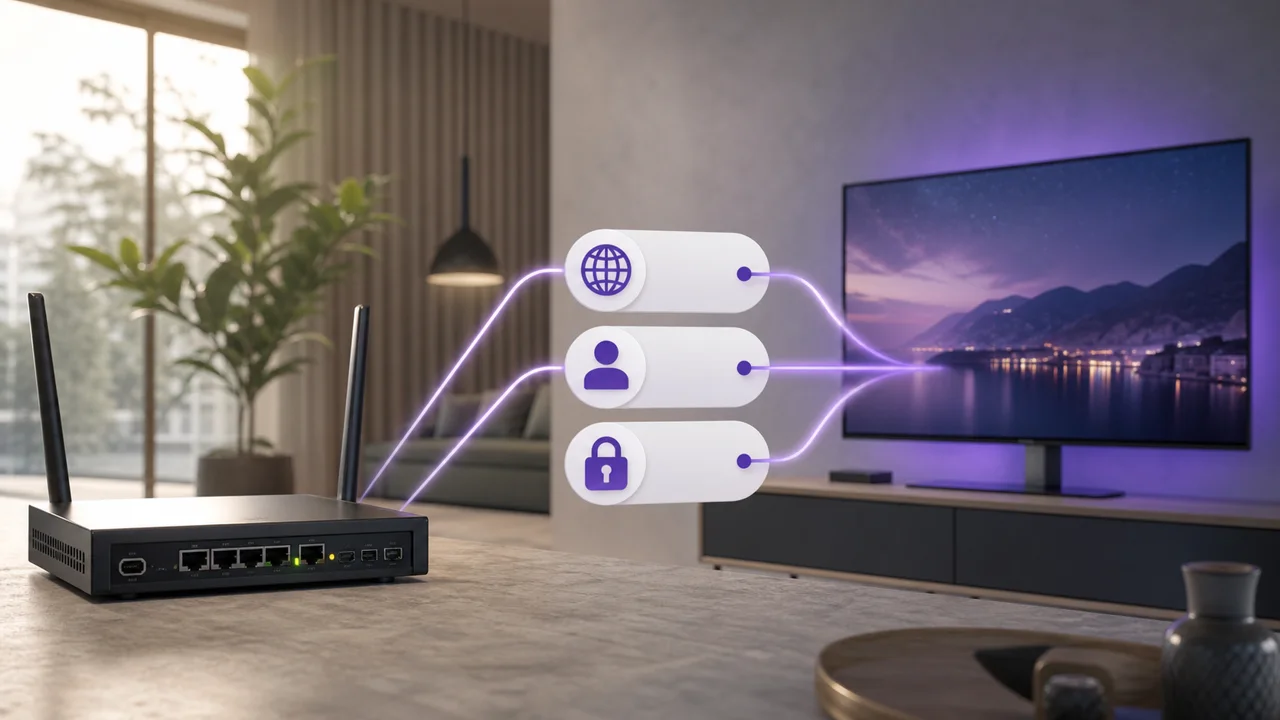
You need three things before installing IPTV: a stable Internet connection, a compatible device, and the connection details from your subscription. Gather these before you begin:
- A stable Internet connection, wired or Wi-Fi.
- A compatible device: Smart TV, Android box, streaming stick, computer or mobile. See our article on what an IPTV box is if you're hesitating between a box and a native application.
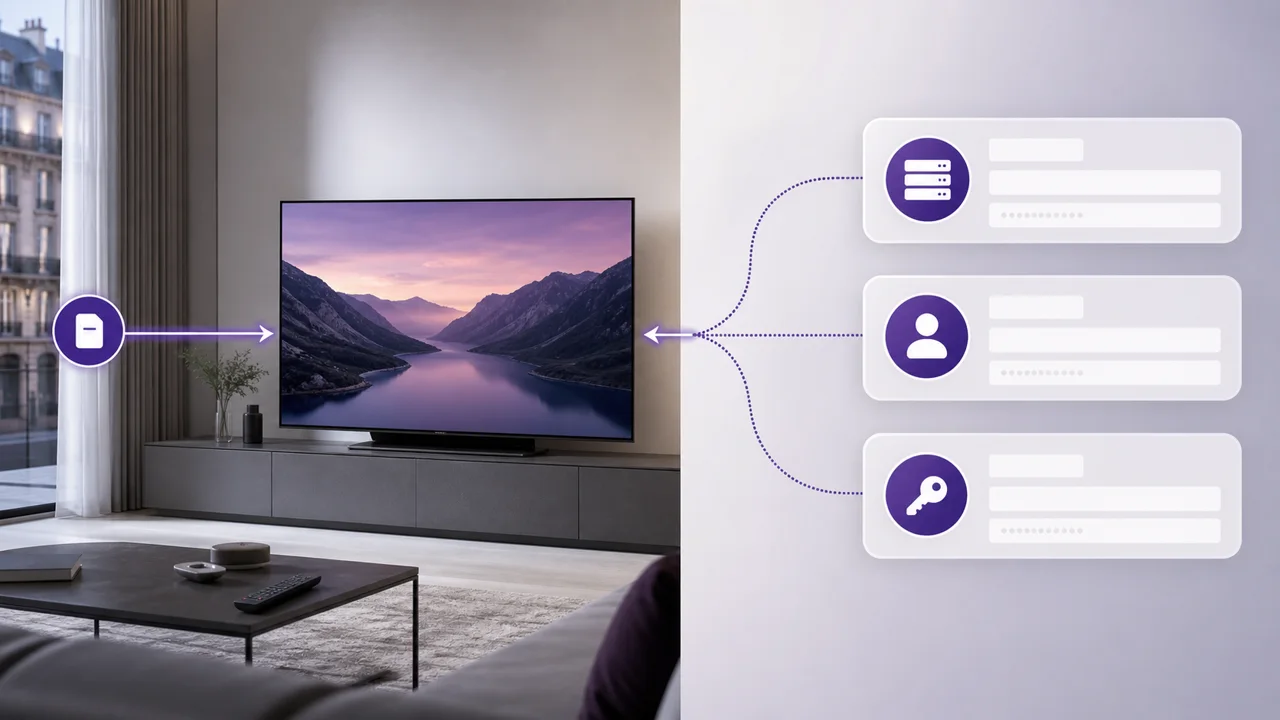
- The connection information provided by your subscription: either an M3U URL, or an Xtream Codes server + username + password set. The difference between the two is detailed in our article M3U or Xtream Codes.
Method 1: install IPTV with an M3U URL
- Install an M3U compatible application, for example VLC or a dedicated IPTV application.
- Open the app's add network stream or playlist menu.
- Paste the M3U URL provided by your subscription (usually sent by email upon activation).
- Validate: the application downloads the channel list and displays it, as described in the official VideoLAN documentation on network streaming.
Method 2: install IPTV with Xtream Codes credentials
- Install an Xtream Codes compatible application, for example IPTV Smarters Pro or TiviMate.
- Choose the “Xtream Codes” (sometimes called “Xtream API”) connection option rather than M3U.
- Complete the three requested fields: server address, username, password.
- Validate: the application automatically loads the live channels, VOD and EPG associated with your account, as documented by TiviMate for this connection mode. The details of each field are explained in our article Xtream Codes explained.
Method 3: install a dedicated app for your device
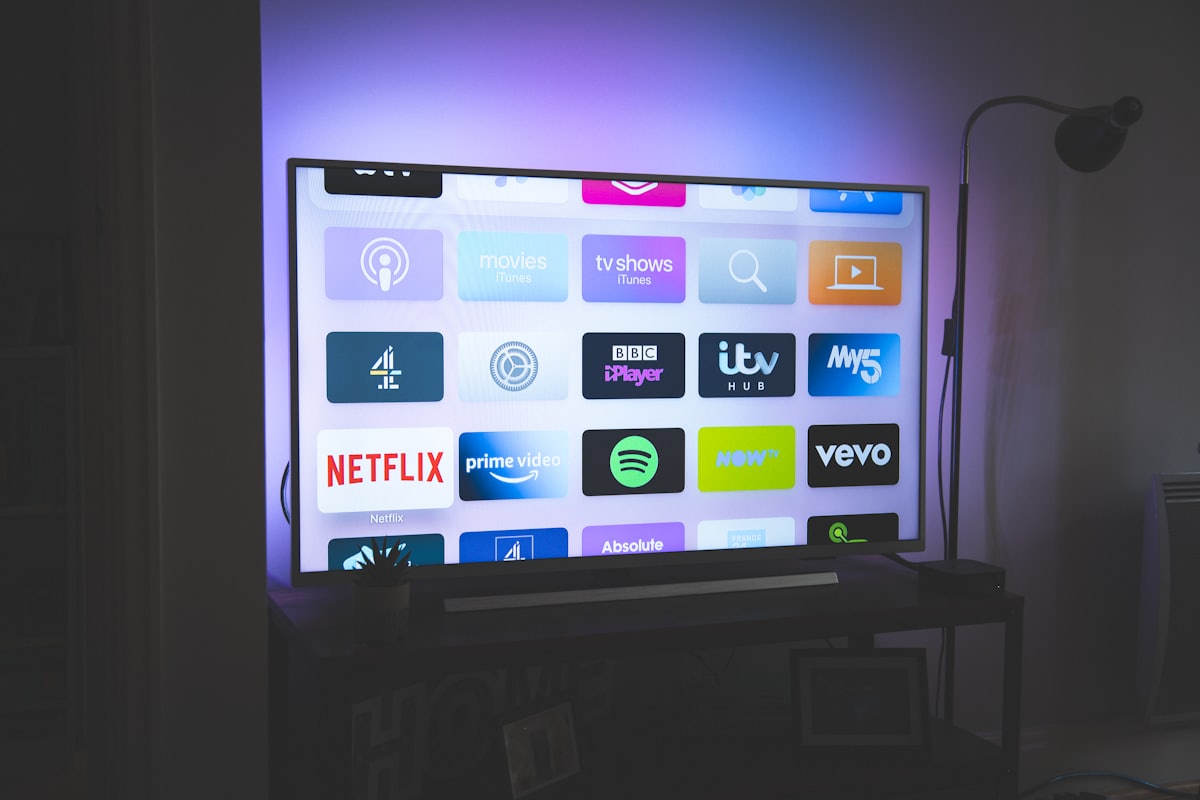
On certain devices, notably Smart TVs, a specific application (such as Smart IPTV) simplifies the connection by associating the device with your playlist without re-entering the URL each time, a way of working specific to this type of application described on the official Smart IPTV website.
- Open the app store of your device (Smart TV, box, mobile).
- Find and install the recommended application for your hardware.
- Follow the application-specific configuration wizard (device association, entering a URL or credentials as appropriate).
- Verify that the channel list loads correctly before closing the wizard.
Which method should you choose for your device?
Choose the method your subscription supports, since the principle stays the same on every device and only the on-screen steps change. Our device installation guides detail each setup step by step, from Smart TV and Android box to iPhone/iPad, Windows and macOS. Some devices require a specific approach: see how to proceed on Chromecast and Google TV, on Apple TV, on Roku, on a satellite receiver Enigma2 or directly from a web browser without installing anything.
What are the most frequent installation problems?
Most installation problems trace back to a mistyped URL or credentials, or to the network rather than the app itself. The three most common cases:
- The list does not load: first check the Internet connection, then the correctness of the URL or credentials (spaces, capital letters).
- Image freezes or loads slowly: the problem usually comes from the network rather than the installation itself. See our buffering troubleshooting guide.
- No compatible application on the device: in this case, an external box can add this capability. See our article on the decoder and IPTV box.
In summary
Installing IPTV always comes down to choosing between three universal methods: an M3U URL, Xtream Codes credentials, or an application dedicated to your device. Once you understand this, only the interface steps change from device to device, and our detailed device guides cover each setup in detail.
Frequently asked questions
What is the easiest IPTV installation method?
The M3U URL is generally the fastest: just one address to paste into the application is enough. Xtream Codes credentials require three separate fields but provide access to more functions (integrated VOD and EPG).
What do I need before starting the installation?
A stable Internet connection, a compatible device (Smart TV, box, mobile, computer), and the connection information provided by your subscription: an M3U URL, or an Xtream Codes server + username + password.
Is a specific code required to install IPTV?
The term “code” most often refers to the Xtream Codes credentials (server, username, password) provided when activating your subscription. This is not a secret code to be guessed, but information transmitted directly by the provider.
How long does IPTV installation take?
Once the app is installed, entering an M3U URL or Xtream Codes credentials usually takes a few minutes while the app loads the full list of channels.
Can I install IPTV on multiple devices with the same subscription?
Yes, as long as the number of simultaneous connections in your plan allows it. Each device can be configured independently with the same M3U URL or Xtream Codes credentials.
What should I do if the channel list does not load after installation?
First check your internet connection and then that the URL or credentials have been entered without spaces or errors. If the problem persists, our buffering troubleshooting guide covers the most common network causes.