Installation
IPTV on Chromecast and Google TV: cast or install the application?
IPTV on Chromecast: cast from a mobile app, or install a native player on Chromecast with Google TV. Compare the two methods, their steps and real limits.
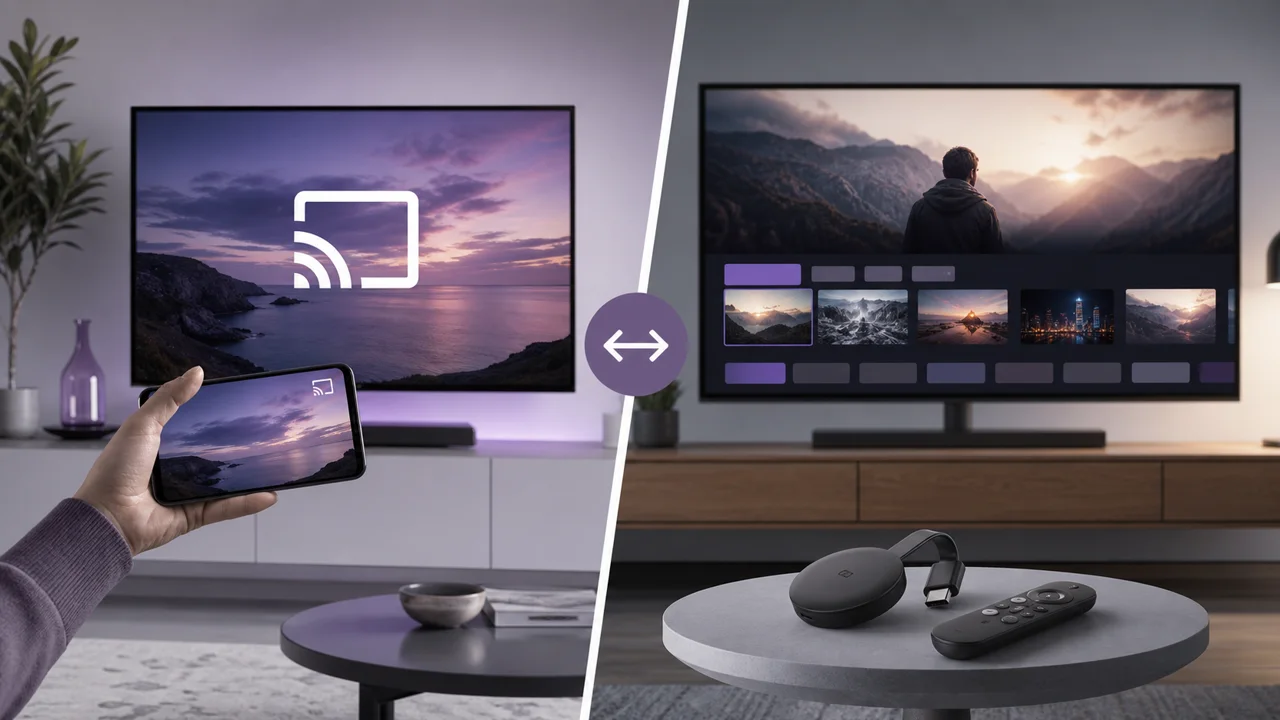
The name “Chromecast” actually brings together two very different families of devices for IPTV: the classic Chromecast, without remote control, which simply receives a stream sent from another device, and Chromecast with Google TV, which adds a remote control and a real interface with an app store. The method to follow directly depends on the model you have.
Classic Chromecast or Chromecast with Google TV: which do you have?
| Model | Remote control | Own interface | Installing an IPTV app |
|---|---|---|---|
| Chromecast (1st, 2nd, 3rd generation, Chromecast Ultra) | No | No | Not possible directly; you must cast from a mobile device |
| Chromecast with Google TV (HD or 4K) | Yes | Yes, Google TV | Possible via Google Play, like on an Android TV box |
| Television with integrated Google TV | Yes (TV remote control) | Yes, Google TV | Same as Chromecast box with Google TV |
Your device decides the method: a Chromecast with Google TV installs an app directly, while a classic Chromecast has no home screen, no search and no store, so it is controlled entirely from another device. Check which model you own before you choose how to set up IPTV.
Method 1: Install a native IPTV app on Chromecast with Google TV
If your device has a remote control and a Google TV interface, the most stable method is to install an app directly on it, just like on an Android TV box:
- On the Google TV home screen, search for the app via Assistant or the Apps tab, as documented in Google TV Help on installing apps.
- Check the exact publisher name before installing, especially for an Xtream Codes or M3U compatible player.
- Open the application, choose the connection method (Xtream Codes or M3U URL) and enter the information received with your subscription.
- Confirm and wait for the categories to load completely before testing a channel.
This method avoids any intermediary: the stream goes directly from the server to the device, without going through the phone.
Method 2: cast an IPTV application from a mobile
On a classic Chromecast without Google TV, or if you prefer to control playback from your phone, cast the stream:
- Install a Google Cast compatible IPTV application on your mobile; not all applications include it, so check the app's listing before choosing.
- Connect the phone and Chromecast to the same Wi-Fi network.
- In the app, start playing a channel, then select the cast icon and choose your device, as described in Google TV Help on casting from a device.
- The stream is displayed on the TV; some applications then transmit the stream address directly to the receiving device, which plays it on its own.
Not all IPTV applications include this function: without it, no cast button appears, even if the two devices share the same network.
What are the limitations before choosing?
Casting has four limits worth knowing: a possible delay, dependence on the local network, phone battery drain, and stability tied to the stream itself.
- Possible delay: when the phone remains in the transmission chain, a slight delay may appear compared to a native application.
- Local network dependency: both devices must be on the same Wi-Fi network; an isolated guest network, common in some internet boxes, prevents the device from being discovered.
- Phone battery life: depending on the application, the mobile screen may need to remain active, which consumes more battery.
- Stability with an unstable stream: if playback freezes or loads slowly, the cause is usually the network rather than the chosen method; see our buffering troubleshooting guide.
Which method should you choose?
If your device has Google TV, choose a natively installed application: it is more stable and can be controlled directly from the remote control, without depending on the phone. Reserve casting for classic Chromecasts or occasional situations where installing an application is not possible. For detailed step-by-step instructions, consult our universal installation guide then our article on what an IPTV box is if you are hesitating between a Chromecast and another type of box.
In summary
A Chromecast with Google TV installs an IPTV application like a classic Android TV box, without using a phone. A Chromecast without Google TV is entirely dependent on casting from a Google Cast compatible mobile app. Check the exact model of your device before choosing the method, as stability and ease of use are not identical.
Frequently asked questions
What is the difference between a classic Chromecast and a Chromecast with Google TV?
The first does not have a remote control or its own interface: it only receives a stream cast from another device. Chromecast with Google TV adds a remote control, a Google TV interface and an app store, making it possible to install an IPTV app directly on it.
Does an IPTV application have to integrate a specific function to be cast?
Yes. The app must implement the Google Cast SDK to display the cast icon. An app that doesn't integrate it can't send its stream to a Chromecast, even if the phone is on the same network.
Does live TV cast with a delay compared to the original?
A slight delay is possible as the stream passes through the phone or network before reaching the receiving device. A native app installed directly on Google TV eliminates this intermediate step.
Does the phone have to stay on during the entire viewing when casting?
It depends on the casting mode. For video, most applications pass the address of the stream to the receiving device, which then plays it on its own; the phone can then lock. Some applications, on the other hand, require the screen to remain active continuously.
Does a Smart TV with Google TV built-in work as an external Chromecast box?
Yes for installing apps: both use the same Google TV interface and the same app store. The box remains useful if your television does not offer this interface natively.
What should I do if my device doesn't appear in the cast list?
Verify that the phone and Chromecast are connected to the same Wi-Fi network, that the app is up to date, and then restart the Chromecast. An isolated guest network often prevents device discovery.