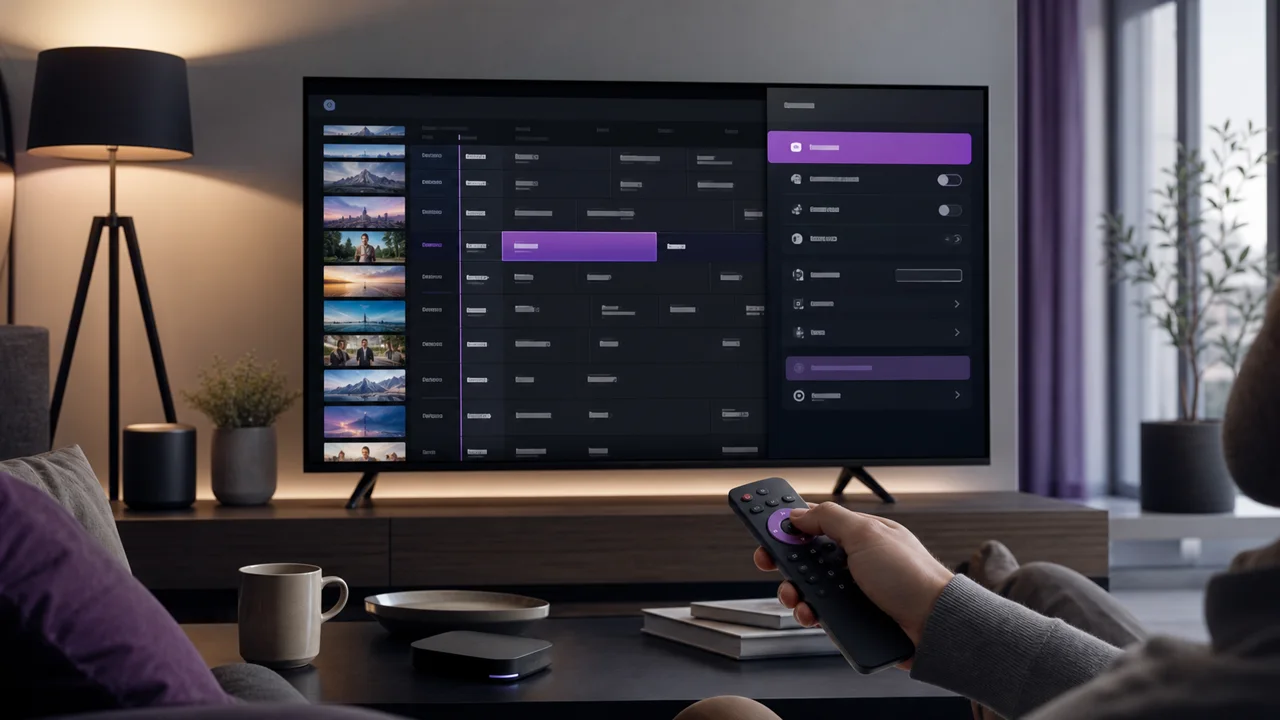
Written for Android TV / Google TV, Xtream Codes and M3U methods — also valid on Fire TV.
TiviMate is appreciated for its full-screen program guide you can drive with the remote control, closer to a classic set-top box than a mobile app. Two limits frame its use: it does not exist on iOS/iPadOS (for an iPhone, see IPTV Smarters Pro), and its free version is deliberately restricted. For a detailed walkthrough of the interface, our complete TiviMate guide goes further, and the Smarters Pro / TiviMate comparison helps you choose between the two.
🎒 What do you need to set up TiviMate?
- An Internet-connected Android TV, Google TV, or Fire TV device
- The TiviMate app installed (Google Play or Amazon Appstore depending on the device)
- Your access credentials — server, Xtream Codes username and password, or your M3U URL — received in your activation email
- A smartphone on hand for the TiviMate Companion app (if the Play Store requires it)
- A stable connection, ideally 5 GHz or Ethernet for HD/4K streams
- About 10 minutes of your time
🛠️ How do you install TiviMate and add your playlist?
You set up TiviMate in four steps: install it from Google Play or the Amazon Appstore, open Add playlist, then enter Xtream Codes or M3U depending on what you received. Recent Play Store builds paste the URL through the free TiviMate Companion app on your phone rather than the remote.
1 Install TiviMate
- Open Google Play on the TV or Android TV / Google TV box.
- Search for TiviMate and check the publisher displayed on the listing.
- Install the app, then open it.
On Fire TV, TiviMate is normally found in the Amazon Appstore; only use an APK from an official publisher source. The TiviMate listing brings together the up-to-date links.
2 Open “Add playlist”
On first launch, TiviMate directly offers Add playlist. On recent versions from the Play Store, entering a URL goes through the free TiviMate Companion app: install it on your phone, open it, and it displays a field where you can paste the server or URL, which then appears on the TV.
💡 Tip: Companion saves you from typing a long address with the remote control. Keep your activation email open on the phone to copy and paste without typos.
3 Enter Xtream Codes (recommended)
This is the recommended mode: the EPG and categories are fetched automatically.
- Choose Add playlist, then Xtream Codes.
- Enter the server
https://play.iptv4ksubscriptions.com, your username and your password (via Companion or on the virtual keyboard). - Name the profile, confirm, then wait for the synchronization to complete before opening a category.
4 Or paste an M3U URL
Use this mode if you received an M3U playlist rather than Xtream credentials.
- Choose Add playlist, then M3U URL.
- Paste
https://play.iptv4ksubscriptions.com/get.php?username=VOTRE_IDENTIFIANT&password=VOTRE_MOT_DE_PASSE&type=m3u_plus&output=tsin the field provided. - Save and let the list refresh. With M3U, the EPG sometimes needs to be added separately in the playlist settings.
✨ Do you need TiviMate Premium?
You do not need Premium to watch IPTV4KSubscriptions: the free version displays one playlist and plays the channels; that is enough to connect IPTV4KSubscriptions and watch live TV every day. The features TiviMate is known for come under Premium (a paid subscription from the publisher):
- several playlists in parallel (the free version accepts only one);
- recording and catch-up (rewatching a past program, when the source provides it);
- multi-view, advanced favorites, EPG reminders and full grid customization.
You don't have to pay to test it or for simple use: a single playlist, without recording, works in the free version. Premium is only worthwhile if you genuinely miss multi-playlist or recording.
⚙️ Xtream Codes or M3U: which one to choose?
Xtream Codes and M3U reach the same content, but you configure and fix them differently in TiviMate. Xtream Codes links the EPG on its own and uses three short fields; M3U is one long URL that often needs a separate EPG URL added by hand.
| Criterion | Xtream Codes | M3U list |
|---|---|---|
| What you enter | Server + username + password | A single long URL |
| EPG (program guide) | Linked automatically | Sometimes entered via a separate URL |
| Categories and favorites | Taken as is from the server | Depend on the playlist structure |
| Fixing an error | Field by field, fast | Full URL re-entry |
| Ideal for | Most TiviMate uses | Players that only accept a URL |
💡 Tip: in TiviMate, choose Xtream Codes whenever offered — a mistyped password can be spotted and corrected much faster than an 80-character M3U URL, and the EPG loads without any extra setup.
📺 How do you configure the EPG and organize your channels?
In TiviMate, press OK / center during playback to open the full-page program guide, where channels scroll vertically and times horizontally. The EPG links automatically with Xtream Codes; with M3U you add a separate EPG URL in the profile settings. This full grid is what brings TiviMate closer to a real set-top box.
With Xtream Codes, the program guide links up on its own; if the grid remains empty, force a playlist refresh in its settings. With M3U, open the profile settings and check the EPG URL field — without it, no data is displayed. Our EPG guide details each case.
For navigation, a long press on a channel opens its menu: add to favorites, hide, or move. First create a Favorites group with your go-to channels — this is what makes daily use quick, rather than scrolling through the whole lineup. You can also hide the categories you don't need to lighten the list. In Premium, selecting a program that has already aired in the grid launches catch-up when the source provides it; in the free version, the grid is only used to view and choose live TV.
🧩 How do you fix common TiviMate problems?
TiviMate missing from Play Store
The device is not a compatible Android TV / Google TV, or its Android version is too old. Check the device compatibility page before searching for an APK.
Cannot paste URL or credentials
This is the restriction that makes TiviMate Companion necessary on recent versions. Install the companion on your phone and paste your access there, rather than forcing the entry with the remote.
“Invalid username/password” (Xtream Codes)
A field is incorrectly copied or your subscription has expired. See Xtream Codes authentication error to check the server, username, password and expiry date.
M3U playlist not loading
The URL is incomplete or incorrectly pasted. The guide M3U playlist not loading lists the most common URL errors.
Empty EPG grid
With Xtream Codes, force a playlist refresh in its settings. With M3U, check the profile's EPG URL: without it, the grid remains empty even if the channels work.
Cannot add a second playlist
The free version only accepts one playlist. Delete the old one before creating a new one, or upgrade to Premium if you need to manage several at the same time.
Picture freezes or pixelates
The bandwidth can't keep up. Switch to 5 GHz Wi-Fi or Ethernet, close background applications, and use a recent Android TV device for 4K streams.
💡 TiviMate tips
- Use Companion without hesitation. Pasting the server from the phone avoids typos on the remote control, the primary cause of authentication errors.
- Create a Favorites group from the start. Store your go-to channels there: daily navigation becomes instant, instead of browsing the entire lineup.
- Stick with Xtream Codes. You gain automatic EPG and field-by-field correction; reserve M3U for cases where you only have the URL.
- Check the EPG URL with M3U. If the grid is empty, it is almost always this field that is missing in the profile settings.
- Don't wait for Premium to start. A free playlist is enough to watch IPTV4KSubscriptions; pay only if you miss multi-playlist or recording.
To change access later, open the playlist settings, replace the server, credentials or M3U URL, then delete the old playlist — useful especially in the free version, where only one playlist is allowed at a time. And if you equip several devices, our guides by device use the same logic for Smart TVs, Android boxes and mobiles.