Troubleshooting
Xtream Codes authentication error: causes and solutions
Xtream Codes authentication error? The 4 usual causes: expired subscription, wrong server or port, a mistyped username or password, or too many connections.
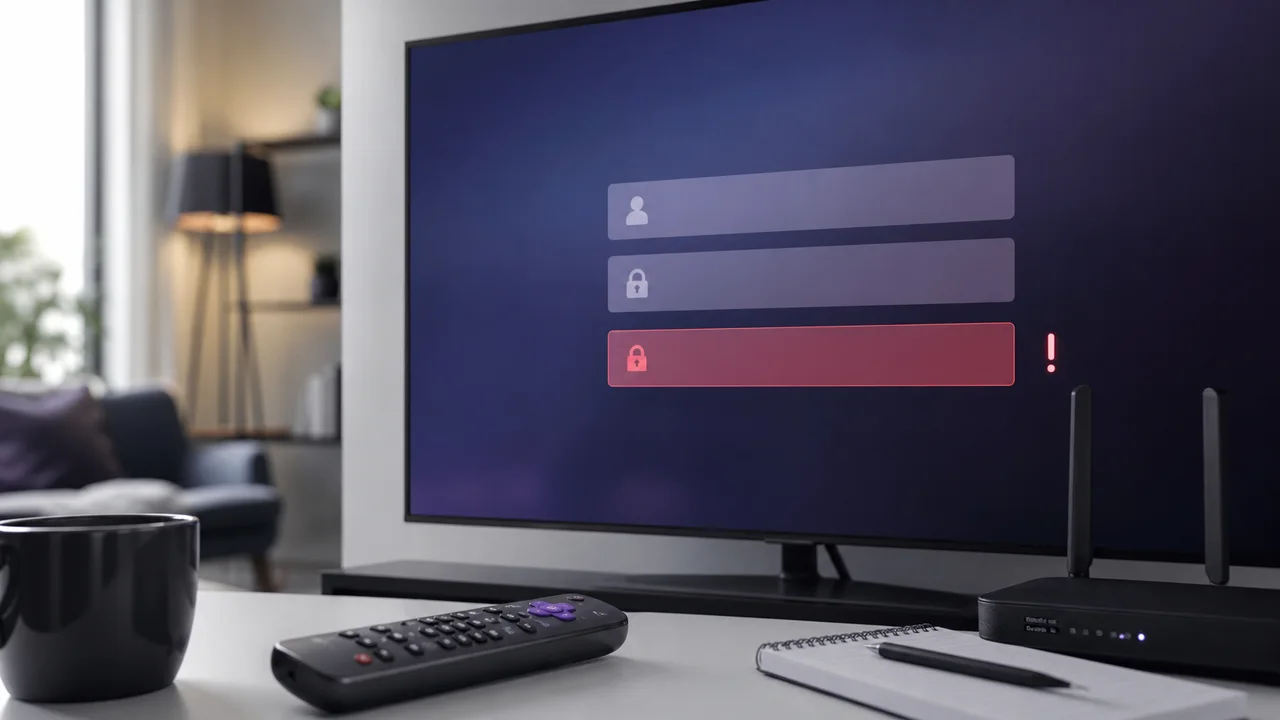
An Xtream Codes connection works like a programming interface (API): the application transmits three pieces of information (server, username, password) and the server validates them before returning the catalog. When this validation fails, the application displays an authentication error, comparable in principle to an HTTP 401 or 403 code documented by Wikipedia. This guide details the four most common causes and how to fix them, in the order you should check them. It applies to any application using Xtream Codes (TiviMate, IPTV Smarters Pro, and others). If you are setting up access for the first time rather than troubleshooting an error, consult the installation guide for your device instead.
What do you need before you start?
- The last activation email received for your access, containing updated server, username and password.
- The application already installed, with access to the playlist management menu.
- A few minutes if playback is active elsewhere in the household.
1. Has your subscription expired?
Access that has expired produces an authentication error even if all three fields are copied identically. This is the easiest cause to rule out first:
- Check the end date indicated in your activation email or your customer area.
- If the date has passed, the error is normal: it disappears after renewal.
- If the date is still valid, proceed to the next check.
2. Are the server address and port correct?
The server address generally includes a port number after the colon (for example :8080), which is an integral part of the address and must be copied exactly:
- Open the playlist management menu of your application.
- Compare the registered address character by character with the one in your last activation email, including the port.
- Correct any differences, even minor ones (capital letter, hyphen, omitted port).
A common mistake is to enter only the domain name without the port: the connection then fails every time, even if the username and password are otherwise correct.
3. Is the username or password mistyped?
On mobile in particular, copying and pasting can add a space or an invisible character at the end of the field:
- Delete the existing username field and password field entirely.
- Re-enter them manually, or paste them and then visually check that there are no spaces at the end of the field.
- Validate and retry the connection.
4. Have you reached the simultaneous connection limit?
Each plan allows a set number of active connections at the same time. If this number is reached, a retry may fail with an authentication error rather than an explicit message indicating the limit reached:
- Close the app completely on the other screens in the household, not just in the background.
- Wait a few minutes for an inactive session to expire on the server side.
- Restart the connection on the affected device.
Summary table
| Cause | Signal to check | Correction |
|---|---|---|
| Subscription expired | Expiry date passed | Renew access |
| Wrong server or port | Address different from the last email | Re-enter the full address, port included |
| Incorrect username/password | Space or invisible character possible | Manually re-enter both fields |
| Simultaneous connection limit reached | Error on all screens at once | Close other players, wait |
Troubleshooting
- The error persists after these four checks: delete the playlist in the application then recreate it entirely rather than modifying the existing entry.
- The error only appears on one device: the problem probably comes from the entry on this specific device, not from your subscription.
- The error appears after a recent renewal: check that you are using the credentials from the last email received, and not old information kept by mistake. See our guide on changing the URL or IPTV code.
- Still blocked: contact support with the application used, the time of the attempt and the exact message displayed.
In summary
An Xtream Codes authentication error is resolved by checking, in order, the subscription expiration date, the server address with its port, the correctness of the username and password, then the number of active simultaneous connections. Our article Xtream Codes explained details each requested field if you have any doubts about any of them.
Frequently asked questions
What exactly does an Xtream Codes authentication error mean?
The server received the connection attempt but refused to validate it: at least one of the three fields (server, username, password) is incorrect, or the associated account is no longer authorized to connect. This is different from a streaming issue, which occurs after a successful connection.
Why does the error appear even though my credentials have not changed?
An expired subscription produces this same message even if the three fields are copied correctly. Check the expiry date first, before changing anything in the application.
Can the port number really cause this error?
Yes. The port is an integral part of the server address: an address entered without its port, or with a port different from the one provided, prevents the connection in the same way as an incorrect username.
How long should you wait after releasing a connection to try again?
A few minutes are usually enough, while an inactive session expires on the server side. Explicitly closing the app on other screens rather than leaving it in the background speeds up this release.
Can a complete reinstallation of the application fix the error?
Rarely alone, because the error does not come from a bug in the application but from the information transmitted to the server. Deleting then recreating the playlist with the exact credentials is more likely to work than a complete reinstallation.
What to do if everything is checked and the error persists?
Contact support with the application used, time of attempt, and a screenshot of the exact message. A server-side problem, independent of your input, remains possible.