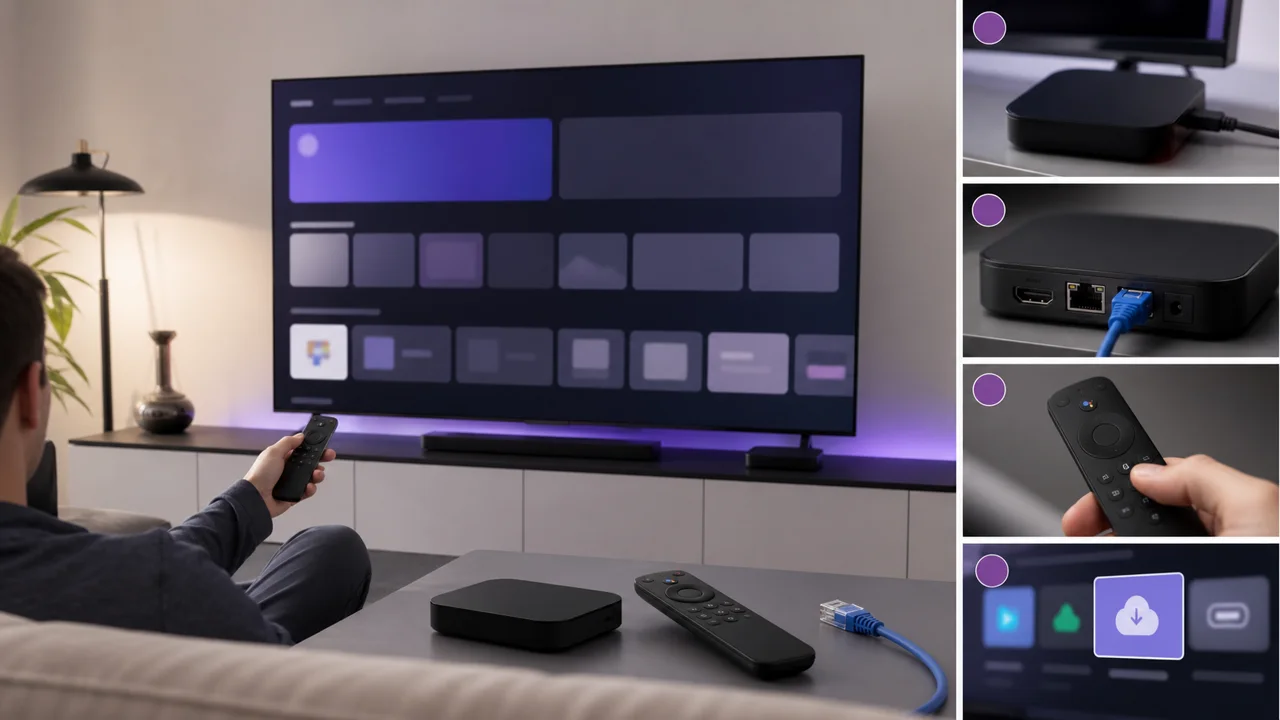
Tested on July 14, 2026 on a Play Protect certified Android TV box (Android 11), microphone remote control.
An Android TV box is not a simple player: it is a real Android device controlled by remote control, with the Google Play Store, a file system and a permissions model. Two details change everything on a daily basis: the slowness of the D-pad keyboard on the screen, and the fact that entry-level boxes are not always Play Protect certified, which hides part of the catalog. This guide starts from these real constraints to get straight to the point.
By the way, it doesn't matter whether your box displays the Google TV interface ("Home", "Applications" and "Search" tabs at the top, home page full of recommendations) or the old Android TV interface (rows of applications with a dedicated "Apps" icon): both use the same Play Store and the same application model. The procedure below applies to both.
🎒 What do you need?
- An Android TV or Google TV box plugged into the TV and connected to the network
- A Google account logged in on the device (to access the Play Store)
- Your access credentials — server, Xtream Codes username and password, or your M3U URL — received in your activation email
- A stable connection, ideally via Ethernet or 5 GHz Wi-Fi for HD/4K
- Your phone within reach, for the remote keyboard and URL dictation
- About 10 minutes of your time
🛠️ How do you install an IPTV player on Android TV?
The main path is the Google Play Store; sideloading is only needed if the desired player is missing from your box's catalog.
1 Install a player from the Google Play Store
- From the Home screen, open the Google Play Store.
- Instead of typing with the D-pad, hold the microphone button on the remote control and dictate the name of the player: this is by far the most comfortable way to enter text on this type of device.
- On the listing, check the exact publisher name and any mention of in-app purchases before installing.
- Monitor storage: a box sold with 8 GB fills up quickly, and a player with a long EPG history can take up several hundred MB.
To choose your player, our IPTV applications comparison and the Smarters Pro / TiviMate comparison detail the differences in remote control and EPG. The dedicated guides for TiviMate and IPTV Smarters Pro cover each configuration screen.
2 Bypass an incomplete catalog (sideload)
Reserve this method for when the desired player is missing from the Play Store — box not Play Protect certified, or application unavailable in your country. Two clean approaches avoid hunting for an APK at random:
- Downloader (from AFTVnews) directly opens the official HTTPS address published by the player's publisher.
- Send Files to TV or X-plore explorer retrieve, via the local network, an APK that you have already downloaded to your phone.
Since Android 8, the “Unknown sources” permission is no longer global but granted application by application. Open Settings → Device Preferences → Security & Restrictions → Unknown Sources, then enable only the app that installs (Downloader or X-plore). Disable it once the player is installed.
⚠️ Warning: only install an APK from the publisher's official address. A file found on a forum or behind a shortened link may be modified — if in doubt, stick to the Google Play Store.
3 Enter Xtream Codes or M3U
Open the installed player, add an account and choose the proposed format:
- for Xtream Codes / API, name the profile (for example “IPTV4K living room”), enter
https://play.iptv4ksubscriptions.comin the Server / Host field, then fill in the username and password received by email; - for an M3U playlist, choose Add remote playlist and paste
https://play.iptv4ksubscriptions.com/get.php?username=VOTRE_IDENTIFIANT&password=VOTRE_MOT_DE_PASSE&type=m3u_plus&output=tsinto the URL field.
Dictate the server into the microphone rather than typing, or use the phone's remote keyboard for an M3U URL — copied character by character to the remote control, it almost always ends up with a mistake. Then let the player retrieve the categories and open a channel to confirm everything responds.
⚙️ Xtream Codes or M3U: which one to choose?
The two formats give access to the same content, but mistakes are not fixed the same way, which matters a lot when you type with a remote control.
| Criterion | Xtream Codes | M3U List |
|---|---|---|
| What you enter | Server + username + password | A single long URL |
| EPG (program guide) | Loaded automatically | Sometimes via a separate URL |
| How to fix an error | Field by field, fast | Full URL re-entry |
| Typing on the remote | Short, can be dictated | Long, best done with the remote keyboard |
| Ideal for | Most modern players | Players that only accept a URL |
💡 Tip: If your player offers both, choose Xtream Codes. On Android TV, an error is corrected by checking three fields, while an incorrect M3U URL requires you to re-enter everything on the remote control.
🧩 Troubleshooting
The player cannot be found in the Play Store
Your box is probably not Play Protect certified. Check in Play Store → profile icon → Settings → “Play Protect certified device”. On a cheap, uncertified box, many players never appear in the results: go through the sideload (step 2), or check compatibility on our compatible devices page.
Installation blocked: “Unknown sources”
The permission is not active for the installing application. Since Android 8, it is granted application by application: open Settings → Device preferences → Security and restrictions → Unknown sources and only activate Downloader (or X-plore) during installation, then turn it off.
“Login failed” / “Invalid username/password”
Xtream Codes error linked to the username, password or subscription expiry. An extra space or a misplaced capital letter is enough. Our guide to the Xtream Codes authentication error covers each cause, field by field.
Empty M3U playlist after refresh
The URL was truncated or copied incorrectly when typed. Enter it again from the phone's remote keyboard rather than the remote control. The guide M3U playlist that does not load lists the most frequent URL errors.
Interface jerky, application closes
Boxes with 1 GB of RAM struggle with large EPGs. Clear the player cache (Settings → Applications → [your player] → Clear cache), uninstall unnecessary applications, and restart the box to free up memory.
Image freezes or pixelates
On a box placed far from the router, 2.4 GHz Wi-Fi saturates quickly. Connect the box via Ethernet, or switch to the 5 GHz band. Our guides Ethernet or Wi-Fi and fixing buffering help you decide.
Slow box or incompatible recent player
An older model running an outdated version of Android may refuse the latest versions of the players. Look for an earlier compatible version from the publisher, or check whether your box can keep up on our compatible devices page before investing in a newer model.
💡 How do you get a stable stream?
- Ethernet rather than Wi-Fi. An RJ45 cable (or USB-Ethernet adapter) eliminates most dropouts, especially in 4K. Failing that, force your router's 5 GHz band.
- The phone as a remote keyboard. Install the “Google TV” or “Android TV” application on your mobile: it serves as a remote control and keyboard to painlessly enter long M3U URLs.
- Dictate into microphone. For app names and searches, the remote's mic button takes all the hassle out of the D-pad.
- Close apps in the background. On a modest box, each open application eats up memory and causes stutters; clear the player cache from time to time.
- Configure the EPG. A player like TiviMate displays a real program guide once your account is loaded; this is what makes the experience feel like a real set-top box.
- Only one player active at a time. You can install multiple apps, but only play in one: two simultaneous streams consume two connections.
- Do not root the box. It is useless for IPTV and it defeats the Play Protect certification.
To change your account later, edit the profile saved in the player, then delete the old one if you no longer use it. And if you set up several devices, our guides by device follow the same logic for Smart TVs, HDMI sticks and mobiles.