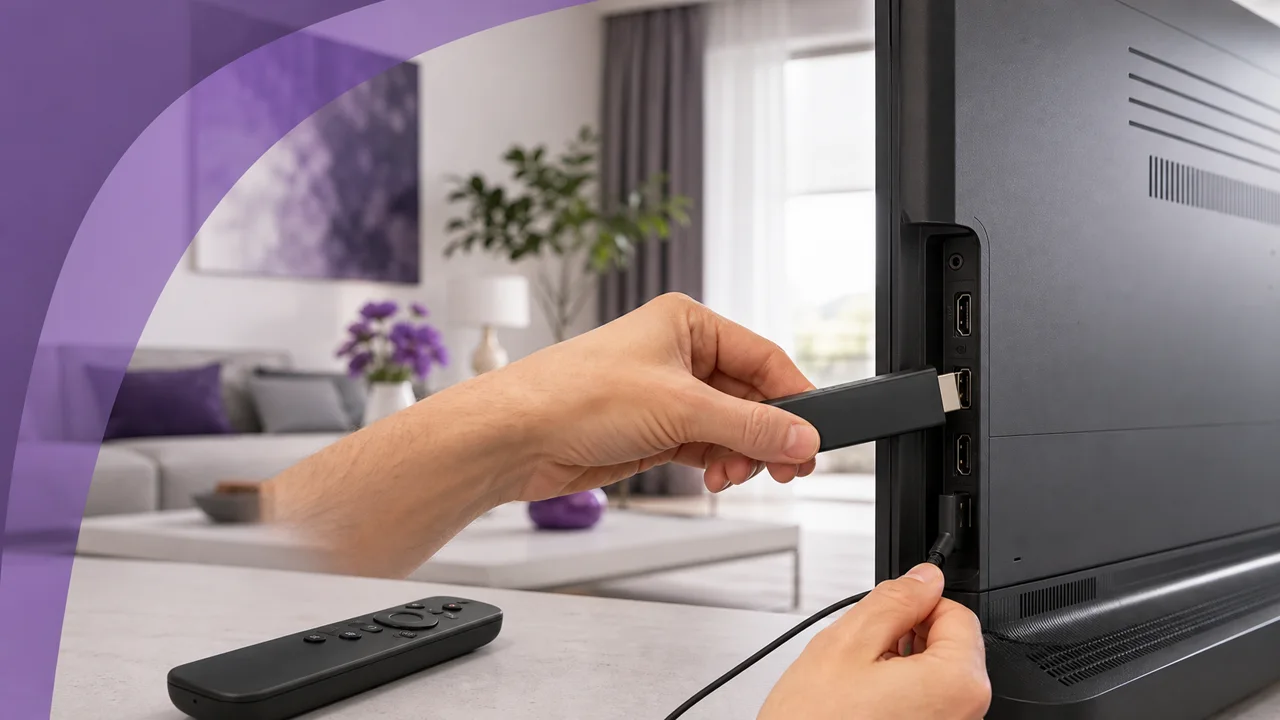
Written for a Fire TV Stick 4K (Fire OS 7), Amazon Appstore then Downloader methods — valid on the entire Fire TV range.
The Fire TV Stick is an HDMI streaming stick from Amazon running Fire OS, a system derived from Android but cut off from Google services. Three things to remember before starting: its store is the Amazon Appstore, its internal storage is limited (around 8 GB, partly already occupied), and installing a player not in the store requires a controlled sideload. Nothing complicated once you know these limits — this guide covers them step by step.
🎒 What do you need?
- A Fire TV Stick (Lite, 4K or Cube) plugged into the TV and connected to Wi-Fi
- Your Amazon account connected on the device
- Your access credentials — server, Xtream Codes username and password, or your M3U URL — received in your activation email
- A stable Internet connection (ideally 5 GHz or Ethernet for 4K)
- About 10 minutes of your time
🛠️ How do you install an IPTV player on Fire TV?
There are two paths: the Amazon Appstore first, and sideloading only if the desired player is not there.
1 Search the Amazon Appstore
- From Fire TV Home, select the Search magnifying glass at the top left.
- Spell the player's name using the on-screen keyboard, or hold the voice (Alexa) button on the remote to dictate it.
- Open the listing, check the exact publisher name and any in-app purchases.
- Install if the app is offered for your model and country.
Several known players are present directly in the Appstore. Our IPTV applications comparison helps you choose, and the TiviMate and IPTV Smarters Pro guides cover each configuration screen.
2 Sideload the official APK with Downloader
Reserve this method for when the desired player is missing from the Appstore and its publisher itself publishes the APK address.
- Install Downloader (from AFTVnews) from the Amazon Appstore.
- Open Settings → My Fire TV → Developer Options → Install unknown apps, then switch Downloader to “Allowed”. On Fire OS, this permission is granted per app, not globally.
- Launch Downloader, type the player's official HTTPS address in the URL bar and confirm.
- Once the APK is downloaded, let the Fire OS installer open and confirm.
- Downloader then offers to delete the APK file: accept — this frees up space.
- Go back to Developer Options and switch Downloader back to “Not Allowed”.
⚠️ Warning: only install an APK from the publisher's official address. A file found on a forum or a shortened link may be modified — if in doubt, stick to the Amazon Appstore.
3 Enter Xtream Codes or M3U
Open the installed player and add your account:
- for Xtream Codes, enter the server
https://play.iptv4ksubscriptions.comthen your username and password; - for an M3U playlist, paste
https://play.iptv4ksubscriptions.com/get.php?username=VOTRE_IDENTIFIANT&password=VOTRE_MOT_DE_PASSE&type=m3u_plus&output=tsinto the remote URL field.
Let the player download the categories, then open a channel to confirm everything responds.
⚙️ Xtream Codes or M3U: which one to choose?
Both give access to the same content, but mistakes are not fixed the same way.
| Criterion | Xtream Codes | M3U List |
|---|---|---|
| What you enter | Server + username + password | A single long URL |
| EPG (program guide) | Loaded automatically | Sometimes via a separate URL |
| How to fix an error | Field by field, fast | Full URL re-entry |
| Ideal for | Most modern players | Players that only accept a URL |
💡 Tip: If your player offers both, choose Xtream Codes — a poorly typed password can be spotted and corrected much faster than an 80-character M3U URL.
🧩 Troubleshooting
“Unknown application blocked”
The “Install unknown apps” permission is not active for Downloader. Enable it during installation (Settings → My Fire TV → Developer Options), then turn it off afterwards.
Installation fails or incompatibility message
The APK does not match Fire OS or the Stick's architecture. Do not try a third-party file at random: start from the official address of the publisher, which offers the correct version.
Not enough space
The 8 GB of an entry-level Stick fill up quickly. Delete downloaded APKs and unused apps via Settings → Apps → Manage installed apps.
“Invalid username/password” (Xtream Codes)
A field is wrong or your subscription has expired. See Xtream Codes authentication error to check server, username, password and expiration date.
Empty M3U Playlist
The URL is incomplete or incorrectly pasted. The guide M3U playlist not loading lists the most common URL errors.
Image freezes or pixelates
The Stick's Wi-Fi saturates quickly. Switch to 5 GHz, plug in the Amazon Ethernet adapter, or follow the advice in our fixing buffering guide.
💡 How do you get a stable stream?
- Ethernet rather than Wi-Fi. The official Amazon Ethernet adapter eliminates most dropouts, especially in 4K. Failing that, force your router's 5 GHz band.
- Close the apps in the background. On an entry-level Stick, each open app eats up memory and causes stutters.
- Keep some space free. An IPTV player is lightweight, but a full Stick slows down: clean it out regularly.
- Configure the EPG. A player like TiviMate displays a real program guide once your account is loaded; this is what makes the experience feel like a real set-top box.
- Turn off the external installation permission as soon as the player is installed, and only re-enable it for an official update.
To change your account later, edit the profile in the player, then delete the old profile if you no longer use it. And if you set up several devices, our guides by device follow the same logic for Smart TVs, Android boxes and mobiles.