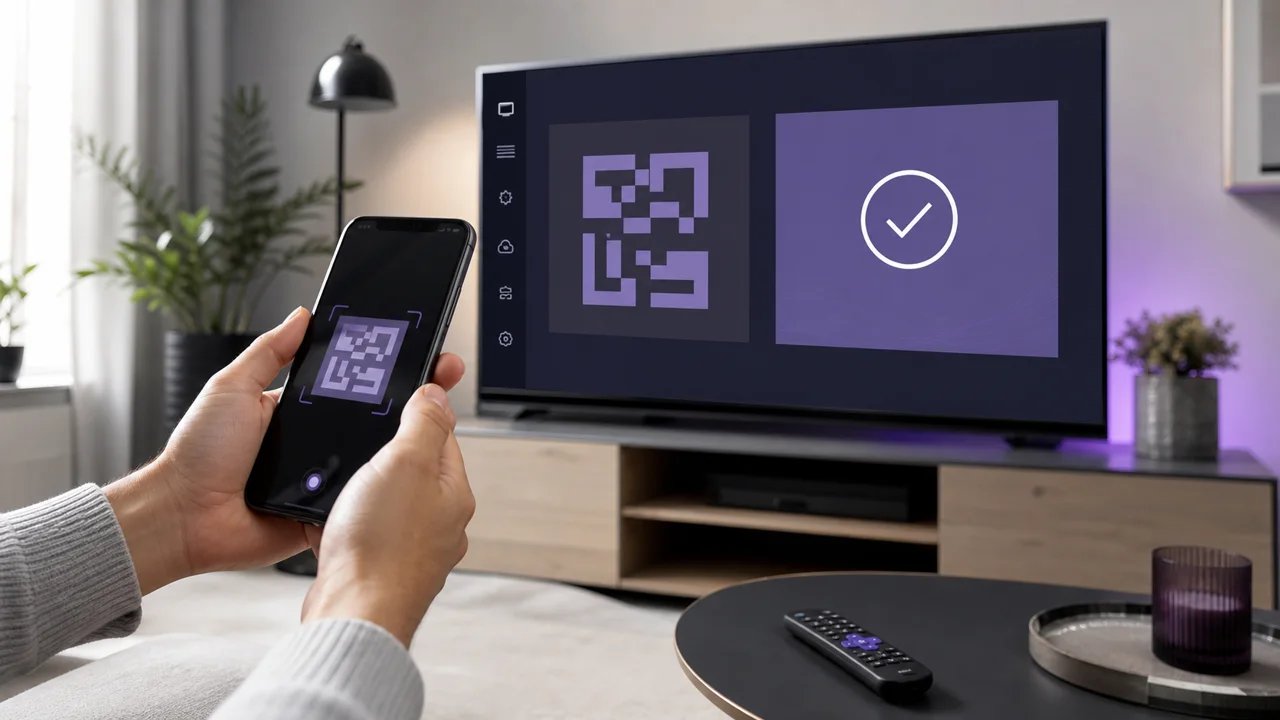
Written for IBO Player and IBO Pro Player, MAC method + playlist upload to iboplayer.com — valid on Smart TVs, Android boxes and iOS devices.
Unlike most players, IBO Player does not ask for a server or username on first launch. It generates an installation-specific virtual MAC address, associates it with a device key, and waits for you to attach a playlist from its web portal. The catalog then arrives by itself in the application. Three things to remember before starting: activation is done from a browser, not on the TV; the MAC address to use is that of the application, not that of the network; and the app itself may request a one-time payment from its publisher, separate from your subscription. This guide describes getting started with your IPTV4KSubscriptions access; for the MAC activation mechanism in detail, see our article IBO Player activation by MAC address.
🎒 What do you need to activate IBO Player?
- IBO Player (or IBO Pro Player) installed on your Smart TV, Android box or iOS device
- A second screen next to it — phone or computer — to open the iboplayer.com portal
- Your M3U URL received in the IPTV4KSubscriptions activation email
- The virtual MAC address and device key displayed by the application (noted in step 1)
- A stable Internet connection on the TV side (5 GHz Wi-Fi or Ethernet preferably)
- About 5 minutes of your time
🛠️ How do you install and activate IBO Player?
You activate IBO Player from a browser, not on the TV: the app shows a virtual MAC address and a device key, you enter those on the iboplayer.com portal, then attach your M3U playlist there. Nothing long is typed on the remote, but you must copy the two values exactly and open the portal address your version displays.
1 Install IBO Player and note its identity
- From your device's store (Google Play, App Store, LG Content Store, Samsung Apps, etc.), install IBO Player then open it.
- On the Home screen, write down the MAC Address in the format
xx:xx:xx:xx:xx:xxand the Device Key. - Also note the portal address displayed by your version: most often
iboplayer.com, but some editions point to a slightly different URL — that one, and only that one, will recognize your device.
Use the MAC displayed by the application, not that of the television's network settings: these are two distinct values, and the portal expects only the first.
2 Register the device on the official portal
On a phone or computer, open the portal indicated by the application (iboplayer.com).
- Enter the MAC address and device key from the previous step.
- Copy each character exactly: a confusion between
0(zero) andO(letter), or an extra space, is enough to cause the association to fail. - Confirm so that the portal recognizes your device and opens the playlist management.
⚠️ Warning: only open the portal address displayed by your application. A site with a similar name, found via an ad or a shortened link, may try to capture your playlist or a payment — if in doubt, start again from the IBO Player home screen.
3 Add your M3U playlist
In the portal playlist form, fill in two fields:
- any name you like, for example
IPTV4K, which only serves to tell your lists apart in the application; - the URL of the playlist:
https://play.iptv4ksubscriptions.com/get.php?username=VOTRE_IDENTIFIANT&password=VOTRE_MOT_DE_PASSE&type=m3u_plus&output=ts, pasted in full, without line breaks or spaces at the beginning.
Save. The name has no effect on the content: it is the URL that actually loads the channels. Keep this M3U URL private — anyone who has it can use up your connections.
4 Relaunch the application and refresh
Return to the TV, completely close IBO Player (not just the screensaver), then reopen it. The application queries the portal, retrieves the linked playlist and downloads the categories. Open a channel to confirm that the stream is responding. If the list remains empty, wait a few seconds then use the application's Refresh function.
⚙️ M3U or Xtream Codes portal: which one to choose?
IBO Player's default method is the M3U portal, and some editions add an Xtream Codes field in the app. Both reach the same content: the portal needs no typing on the remote because you enter everything on iboplayer.com, while Xtream Codes keeps the server, username and password inside the app.
| Criterion | M3U Portal (default method) | Xtream Codes (if offered) |
|---|---|---|
| Where you enter it | On iboplayer.com, from a browser | Directly in the app |
| What you provide | MAC + key, then name + M3U URL | Server https://play.iptv4ksubscriptions.com + username + password |
| Typing on the remote | None (everything is done on the phone keyboard) | Server and credentials typed on screen |
| How to fix an error | Edit the playlist on the portal | Field by field in the application |
| Recommended for | The classic behavior, most reliable | Those who prefer to keep everything in the app |
💡 Tip: if your version displays both, one method is enough — no need to combine. Uploading playlists to the portal remains the most reliable route for IBO Player, as it avoids having to enter a long URL or password on the remote.
🧩 How do you fix common IBO Player problems?
Portal refuses MAC or key
Copy them character by character from the application. A confusion between 0 and O, a 1 mistaken for an l, or an extra space is enough to block the association. Also check that you are on the portal address displayed by your version of IBO Player.
Playlist remains empty after saving
The URL was probably truncated or pasted incorrectly. Check that it has been entered in full, without line breaks. Our guide M3U playlist not loading details the most common URL breaks and HTTP/HTTPS mixing.
Channels only appear after a long time (or not at all)
The application has not yet reloaded the list. Close IBO Player completely then reopen it, or use the Refresh button. A large playlist may take several seconds to download on a slow connection.
A payment request appears
IBO Player offers a short trial period then paid activation invoiced by its publisher, on the portal. This amount only unlocks the application and remains separate from your IPTV4KSubscriptions subscription, which provides the channels.
Black screen when launching a channel
The pairing succeeded (the list displays) but the stream does not start. This is generally a network or format problem: see IPTV black screen for the checks to run.
Image freezes or pixelates
The TV's connection is overloaded. Switch your router to 5 GHz, move the device closer to the router or plug in an Ethernet cable; HD/4K streams need a stable bandwidth, not just a fast one.
You change your TV or phone
The new installation will have another MAC and another key. Add them as a new device to the portal rather than reusing the old listing; the old one can stay in place without getting in the way.
💡 Tips for a smooth IBO Player
- Keep the portal address handy. Note the exact address displayed by your version: this is where you will return to change the M3U URL or add a second list, without reinstalling anything.
- A clear name per playlist. If you save several lists, name them meaningfully (
IPTV4K-LivingRoom,IPTV4K-Test) — the application displays them as they are. - Protect your M3U URL. It is as good as your credentials: do not share it, do not publish it on a forum. Whoever has it can occupy your simultaneous connections.
- Prefer a stable connection. Ethernet or 5 GHz Wi-Fi significantly reduce buffering, especially on Smart TVs with a modest antenna.
- Distinguish the two payments. The activation of IBO Player goes to its publisher; access to the channels comes from your subscription. A problem with one does not necessarily explain the other.
To change your account later, edit or delete the playlist on the portal, then refresh the app. And if you set up several screens, the device compatibility page and our installation guides follow the same logic for Smart TVs, Android boxes, mobiles and players like IPTV Smarters Pro.