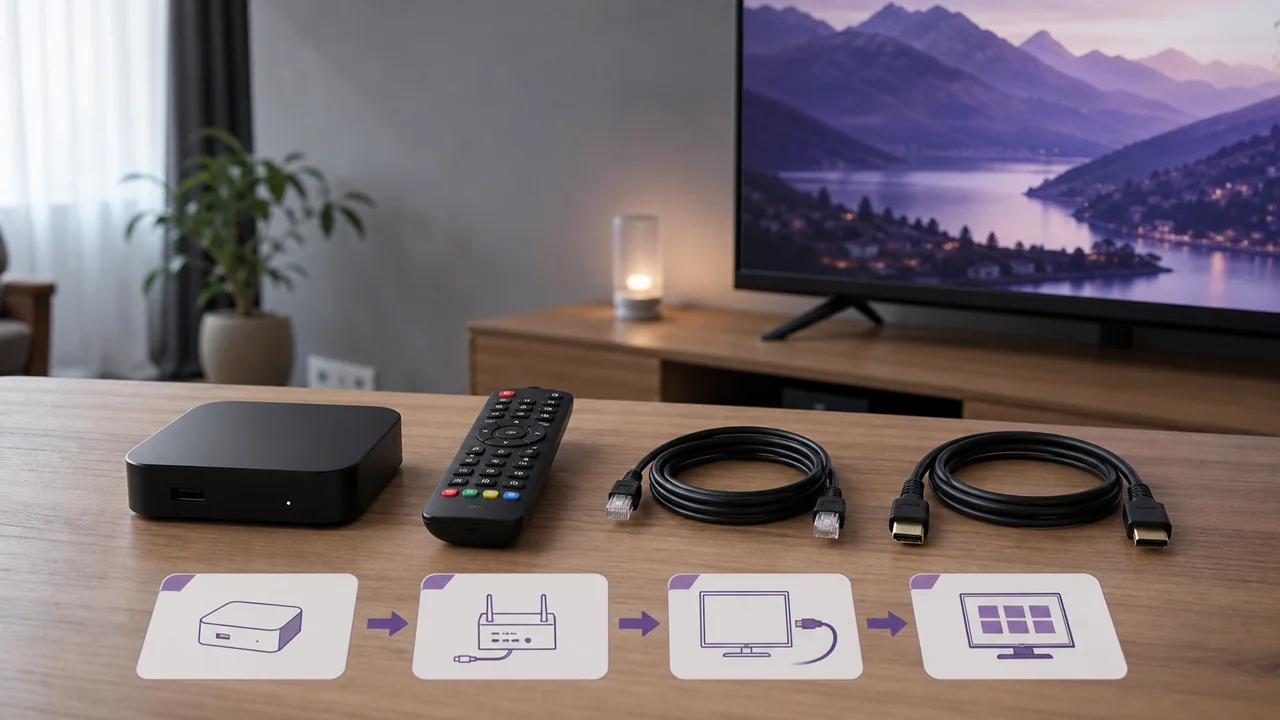
Written for a MAG 322 under Stalker/Ministra middleware, original remote control — valid on the MAG 254, 322, 324, 424 and 522 range.
A MAG (MAG 254, 322, 324, 424, 522…) is a Linux set-top box from Infomir built around a middleware called Stalker, renamed Ministra. Unlike an Android box, it does not have an application store: it displays the interface that a server sends to it once it has loaded a portal. The entire configuration therefore comes down to a portal address and a MAC address, not a player installation. If your device instead displays Google Play, it is not a real MAG but an Android box in disguise — follow the Android TV guide instead. This guide covers the real MAG, step by step.
🎒 What do you need to set up a MAG box?
- A MAG Infomir box (254, 322, 324, 424, 522…) connected via HDMI to the television
- An active network connection — ideally an Ethernet cable rather than Wi-Fi
- The MAC address of the box, printed on the bottom of the device and recalled in System Info
- A Stalker/Ministra portal address confirmed by support for your access
- The original MAG remote control (the OK key is used to validate each field)
- About 5 minutes of your time
🛠️ How do you configure the portal on your MAG?
You configure a MAG in three steps: identify the box and note its MAC address, obtain the Stalker/Ministra portal from support, then enter that portal in System Settings. No username or password is used, because the MAC address associated with the portal authenticates the box on the server side.
1 Recognize the MAG and note its MAC address
An authentic MAG starts with a simple home menu (Infomir) with a System Settings entry, and no application store.
- Turn the box over: the MAC address is printed on the label, in the format
00:1A:79:xx:xx:xx. - Check it on the screen in System Settings → System Info; it always starts with the manufacturer prefix
00:1A:79. - Write it down precisely — this is your box's identity on the server side.
⚠️ Warning: never broadcast your MAC address publicly, especially next to a portal address. The combination of the two is enough for a third party to impersonate your box.
2 Obtain the portal from support
The portal is provided by the service — it cannot be guessed.
- Contact support and ask if a Stalker/Ministra portal address exists for your access.
- Give them your MAC address so they can associate the portal with your box.
- Wait for confirmation of the association before touching the Servers settings.
Without a server-side MAC association, the portal will load but return an authorization denial. This step is therefore not optional.
3 Enter portal address and restart
Once you have the portal address, entering it takes a minute:
- From Home, open System Settings → Servers → Portals.
- In Portal 1 name, enter any label you like (for example “IPTV4K”).
- In Portal 1 URL, enter the address exactly as it was sent to you. Do not add
/c/,/stalker_portal/, or a port: these suffixes either are or are not part of the original address. - Validate with the OK key, go back, then choose to restart the portal (or turn the box off/on again).
- On restart, the MAG displays “Loading portal…” then the remote interface. Your channels and packages come from the server, with no additional settings.
No username or password is entered here: authentication relies entirely on the MAC associated with the portal.
⚙️ Stalker portal or M3U player: which one for your MAG?
On a MAG, the Stalker/Ministra portal is the native method, while some recent models add a built-in Media Player / IPTV input that opens an M3U playlist. Both paths reach the same content but work differently: the portal authenticates by MAC address with server-managed packages and EPG, whereas the media player plays a raw channel list with the access baked into the URL. If support gave you a list rather than a portal, point this media player at https://play.iptv4ksubscriptions.com/get.php?username=VOTRE_IDENTIFIANT&password=VOTRE_MOT_DE_PASSE&type=m3u_plus&output=ts (via a USB drive containing the file, or the remote address depending on the firmware).
| Criterion | Stalker/Ministra Portal | Built-in M3U player |
|---|---|---|
| What you enter | A portal address + the MAC | An M3U URL or USB file |
| Authentication | MAC address associated with the server | None — the URL contains the access |
| Interface | Sent by the server (packages, EPG) | Raw list of channels |
| MAG native mode | Yes, recommended | Secondary, depending on firmware |
💡 Tip: always favor the portal when it is available — it is the MAG's native mode, with channel packages and the program guide managed on the server side. A classic Xtream Codes URL like https://play.iptv4ksubscriptions.com cannot be entered in the Portals screen: these formats are not interchangeable.
🧩 How do you fix common MAG box problems?
“Portal not available” or blank page when loading
The address is incorrectly copied, or the server does not yet recognize the MAC. Double-check the URL character by character in System Settings → Servers → Portals and confirm the MAC association with support. Never guess a suffix.
“Authorization failed” after loading the portal
The MAC is not (or no longer) authorized, or your access deadline has passed. Only support can revalidate the MAC ↔ portal association or renew access.
Portal loads, then black screen on a channel
The portal works: the problem comes from the stream, the codec or the HDMI, not the configuration. Test another channel, change the HDMI output resolution, and verify that the network supports HD/4K.
“Loading portal…” which loops
The box does not reach the server. Check the Ethernet cable or Wi-Fi, then the network settings (DHCP/DNS) in System Settings → Network. Once the connection is re-established, restart the portal.
Firmware too old to load portal
An old MAG 254 may no longer open certain recent portals. Start an update via System Settings → Software Update; if the box can no longer be upgraded, see the alternatives on compatible devices.
Regular dropouts during playback
A MAG is ideally connected via Ethernet: it loads its entire interface from the server and does not cope well with Wi-Fi micro-losses. Move the box closer to the router or switch to a cable.
Empty M3U playlist in media player
The URL is incomplete, pasted incorrectly, or the USB file is incorrectly formatted. Re-enter https://play.iptv4ksubscriptions.com/get.php?username=VOTRE_IDENTIFIANT&password=VOTRE_MOT_DE_PASSE&type=m3u_plus&output=ts in full, or check that the .m3u file on the USB drive is at the root and readable by the firmware.
💡 Tips for a stable MAG
- Connect it via Ethernet. This is the advice that changes the most things on a MAG: the entire interface travels over the network, and a wired connection eliminates most dropouts.
- Copy the portal address character for character. Almost all “Portal not available” errors come from an extra letter, dot or slash. Don't add any suffixes yourself.
- Keep your MAC confidential. Only give it to support, never on a forum or next to the portal address.
- Keep the firmware up to date. An Infomir update via System Settings often fixes portals that refused to load on older models.
- Changing access ≠ changing credentials. On a MAG, you do not change a password: you ask support for a new portal or a new MAC association.
To compare access plans, see the pricing page; and if you set up several devices, our guides by device follow the same logic for Smart TVs, Android boxes and mobiles.