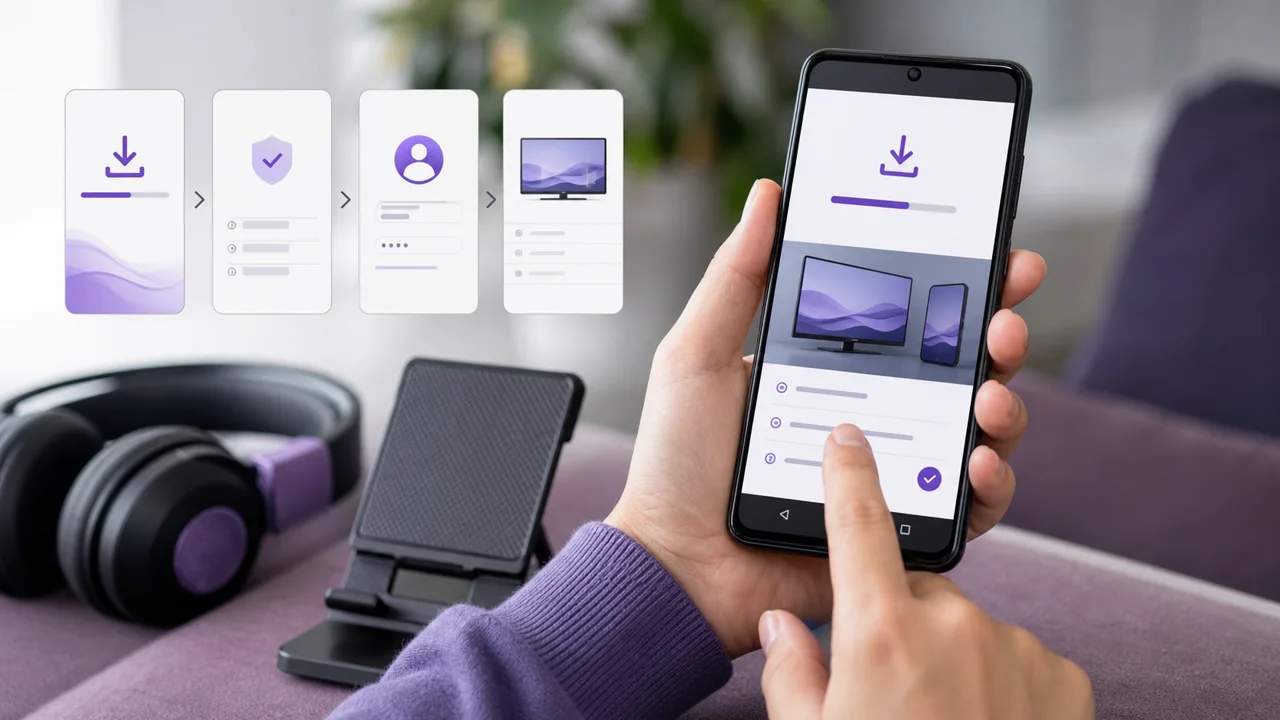
Written for a recent Android phone (Google Play), Play Store methods then official APK — also valid on Android tablet.
An Android phone remains an ideal extra screen: practical for testing your access in two minutes, watching on the go, or checking that a channel is working before setting up the living room. Unlike a box, it has everything you need – Google Play, a touch screen, a Wi-Fi or mobile connection – but it also has its limits: battery life, heat and data consumption. If your goal is to watch on the TV over the long run, follow our guide Android TV box instead; here, we stay on the mobile screen, at your fingertips.
🎒 What do you need to install IPTV on an Android phone?
- An up-to-date Android phone (or tablet), with Google Play
- A Google account signed in on the device
- Your access credentials — server, Xtream Codes username and password, or your M3U URL — received in your activation email
- A stable Wi-Fi connection (the phone works in 4G/5G, but burns through your data plan quickly)
- A little battery or a charger within reach if you are planning a long session
- About 5 minutes of your time
🛠️ How do you install an IPTV player on Android?
You install an IPTV player on Android in one of two ways: from Google Play in a few taps, or by sideloading the publisher's official APK only when the player you want is missing from the store. Google Play is the safe default because Play Protect scans every app, and the APK route is a fallback that needs a one-time permission you should switch off again afterward.
1 Install a player from Google Play
- Open the Play Store and search for a player (IPTV Smarters Pro is the most common, but others are suitable).
- Check the exact publisher name, the number of reviews and the advertised in-app purchases before installing.
- Tap Install, then open the application: on a phone, everything is controlled by touch, not a remote control.
Several reliable players are offered directly in the store. The IPTV Smarters Pro listing details its login screens, the applications directory lists others, and our comparison of IPTV applications helps you decide based on how you'll use it.
2 Sideload an official APK (if missing from Google Play)
Some players are distributed as an .apk file outside the Play Store. Since Android 8, the installation permission is no longer global but granted per source application.
- Download the APK from the publisher's official website — never a link received by message or found on a forum.
- When opening the file, Android blocks the installation: tap Settings.
- On the Install unknown apps screen, choose the application you downloaded (your browser or file manager), then enable Allow from this source.
- Go back: the installation continues. Then disable the permission — it is only used once.
⚠️ Attention: only install an APK from the publisher's official address. A modified file can masquerade as a player; when in doubt, stick to Google Play, where Play Protect checks every app.
3 Enter Xtream Codes or M3U
Open the installed player and add your access:
- for Xtream Codes (or Login with Xtream Codes API), enter the server
https://play.iptv4ksubscriptions.com, then your username and password; - for an M3U playlist (M3U URL or Remote playlist), paste
https://play.iptv4ksubscriptions.com/get.php?username=VOTRE_IDENTIFIANT&password=VOTRE_MOT_DE_PASSE&type=m3u_plus&output=tsin full into the URL field.
You can also start from an already saved .m3u file: open the Files application, tap the file, then Open with or Share to your player. Save the profile, let the catalog load, then open a channel to confirm everything responds. Never share these credentials in a public screenshot.
⚙️ Xtream Codes or M3U: which one to choose?
Xtream Codes and M3U give access to the same channels, but you enter and correct them differently, which matters when you're typing on a touch keyboard. Xtream Codes splits the login into short server, username and password fields; M3U is one long URL that is easy to mistype and slow to fix.
| Criterion | Xtream Codes | M3U list |
|---|---|---|
| What you enter | Server + username + password | A single long URL |
| Touch keyboard input | Short fields, easy to correct | 80+ character URL, error prone |
| EPG (program guide) | Loaded automatically | Sometimes via a separate URL |
| Fixing an error | Field by field, fast | Full URL re-entry |
| Ideal for | Most modern players | Players that only accept a URL |
💡 Tip: on a phone, prefer Xtream Codes when the player offers it. A mistyped password can be spotted and corrected much faster than an endless M3U URL re-entered with your thumb. If you need to paste an M3U URL, send it to yourself securely and then use copy and paste rather than manual typing.
📺 How do you cast IPTV to your TV?
You send IPTV from an Android phone to the TV in two ways: Chromecast casting if the player has a Cast button, or full screen mirroring (Smart View) from the Android quick panel. Casting is smoother and uses less battery because the phone does not decode the video itself; mirroring works with any player but drains the battery faster and adds slight lag.
- Cast (Chromecast): if the player includes the Cast button (screen icon), the phone sends the stream to the Chromecast or compatible TV, then acts as a remote control. This is the smoothest and least battery-hungry solution, as the phone does not decode the video itself.
- Screen mirroring (Smart View / Screen cast): from the Android quick panel, you mirror the entire screen on the TV. This method works with any player, but it consumes more battery and introduces slight lag.
Two limits to be aware of: screen mirroring heats up the device over a long session, and certain protected streams may refuse to be displayed in cast. For regular TV use, a dedicated box connected directly remains more stable than a phone that broadcasts — see our guide Android TV box.
🔋 How do you manage data, battery and background playback?
A phone adds three constraints a fixed box avoids: video eats several gigabytes per hour, the screen drains the battery throughout playback, and Android can suspend the player in the background. Watch on Wi-Fi, lower the resolution when you're on the move, and keep the player in the foreground to keep all three under control.
- Data: an HD stream consumes several gigabytes per hour, 4K much more. To keep playback on Wi-Fi only, turn off mobile data for the player in Settings → Apps → (the player) → Mobile data, or lower the resolution in the player settings when you're on the move.
- Battery: the screen stays on throughout playback, which heats the phone and drains it quickly. A Wi-Fi session at moderate brightness spares the battery; avoid playing while charging continuously, which increases heating.
- Background: Android can restrict an app running in the background to save battery power, which cuts the sound or the stream. Keep the player in the foreground while you watch, and if the app freezes after a screen lock, turn off battery optimization for that player in its system settings.
💡 Tip: before a trip, test your access at home over Wi-Fi. You will know that the credentials are good and you will avoid burning through the mobile plan just to check a typo.
🧩 How do you fix common Android IPTV problems?
On mobile, most problems come from the network or touch keyboard input rather than the device itself. Address the simplest cause first before reinstalling anything.
Application incompatible with your version of Android
The player requires a newer version than the phone's. Update the system if possible; otherwise, choose another compatible player from the applications directory rather than an unofficial APK tailored for an old version.
“Invalid username/password” (Xtream Codes)
A field is incorrect or the access period has ended. See the Xtream Codes authentication-error guide to check the server address, username, password and validity date. Pay particular attention to spaces inserted by the keyboard's autocorrect feature.
Empty M3U playlist
The URL is incomplete or pasted incorrectly: it's easy to forget the end with your thumb. The guide M3U playlist not loading lists the most common URL errors.
Dropouts when switching between Wi-Fi and mobile network
The player loses the stream when the phone switches from one network to another. Pause, wait for the reconnection, then resume. Other causes of dropouts are detailed in our guide fixing buffering.
Picture freezes or pixelates
In 4G/5G, the speed varies depending on the coverage; on Wi-Fi, the 2.4 GHz band saturates quickly. Move closer to your router, force 5 GHz, or lower the resolution in the player. See also fixing buffering.
The cast does not work or the screen remains black on the TV
Verify that the phone and TV are on the same Wi-Fi network. If the image remains black while casting even though the sound plays, the stream is probably protected: use screen mirroring, or play directly on a box.
Phone gets very hot during playback
The screen and video decoding heat up the device. Lower the resolution in the player, remove the case while you test, avoid playing while charging, and stop if the heat becomes abnormal.
💡 Tips for a smooth mobile
A few simple settings are enough to transform the mobile experience, in particular for battery life and data consumption, which are the phone's real weak points compared to a fixed box.
- Wi-Fi first. Keep playback on Wi-Fi to preserve your plan; turn off the player's mobile data if you want to avoid any unpleasant surprises on the go.
- Lower the resolution on the move. Most players let you force a lower quality: on a small screen, the difference is invisible but the data and battery savings are real.
- Keep the player in the foreground. Android happily suspends apps in the background; turn off battery optimization for your player if the stream cuts out after a lock.
- Cast rather than mirroring the screen. When the player has Chromecast built in, native casting is smoother and much less demanding than screen mirroring.
- Limit permissions. A player does not need your contacts or your location: refuse unnecessary requests, only the network and sometimes storage (for a local
.m3u) are useful. - Test before you leave. A Wi-Fi check at home confirms that your credentials are correct and saves you from troubleshooting out in the street.
To change access later, edit the profile in the player then delete the old one if you no longer use it. And if you equip several devices, the number of simultaneous streams depends on your plan's connections (pricing); our guides by device use the same logic for Smart TVs, Android boxes and iPhones.