Apps
Duplex IPTV (DuplexPlay): how the Device ID and Device Key activation works
Duplex IPTV (DuplexPlay) is a Samsung and LG smart-TV player. Activate it with a Device ID and Device Key on edit.duplexplay.com. Setup, Xtream, fixes.
Duplex IPTV, also called DuplexPlay, is a native Samsung and LG player you activate on a website with a Device ID and Device Key, then Refresh.
Duplex IPTV, also known as DuplexPlay, is a native player for Samsung and LG smart TVs with no channels of its own. You do not type your playlist into the app. It shows a Device ID and a Device Key, you enter those on the official portal edit.duplexplay.com, add your Xtream or M3U playlist, then press Refresh on the TV.
💡 Key points
- Duplex IPTV, also called DuplexPlay, is an empty player for Samsung and LG TVs, with no channels of its own.
- Your playlist goes on the website edit.duplexplay.com, not into the app.
- The app shows a Device ID and a Device Key; you type those on the site, then press Refresh on the TV.
- On Samsung the app is region-limited and may be missing from your store.
- The price is unsettled, so check duplexplay.com and pay only there.
Each of those catches is covered in full below. If you have never added a playlist before, our guide to installing IPTV in three ways covers the groundwork first.
📺 What is Duplex IPTV (DuplexPlay)?
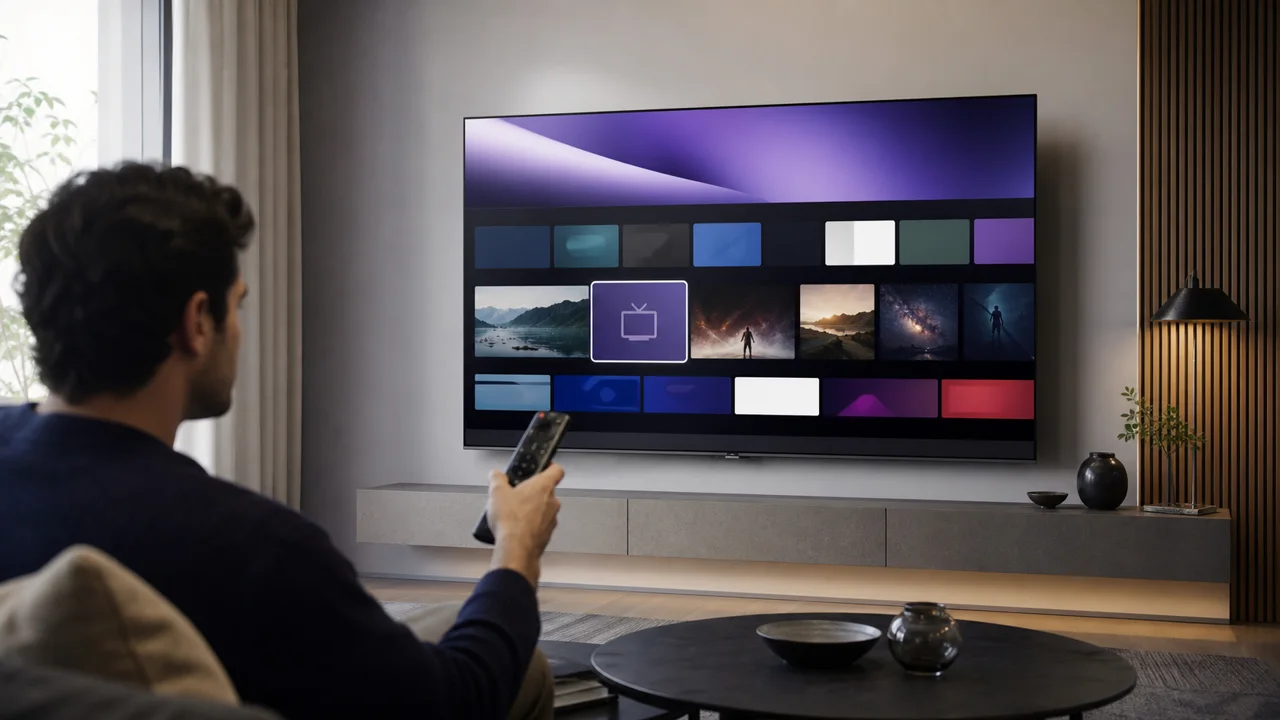
Duplex IPTV, also called DuplexPlay, is a native player for Samsung (Tizen) and LG (webOS) smart TVs, and it ships with no channels of its own. It plays the M3U or Xtream playlist you supply, which makes it a player rather than a subscription or a content service. Install it and open it and you get an empty shell, waiting for you to point it at a source.
That distinction matters, because it is the same point the site makes about every player it covers. The app is only the interface; the channels come from the playlist you supply. Duplex does not sell you channels, films or a programme guide; it displays whatever your own playlist provides once you have linked the two together.
The naming can look confusing at first. "Duplex IPTV" and "DuplexPlay" refer to the same app family from the same developer, and people search both spellings. If a store listing or a setup video says DuplexPlay while you were looking for Duplex IPTV, you are in the right place. Treat the two names as one product.
Because it runs directly on the TV, Duplex needs no external box on a supported Samsung or LG set. If you are unsure whether your television is a match, our device compatibility overview explains which platforms these smart-TV players run on and where an extra device makes more sense.
🔑 How does Duplex IPTV activation actually work?
Duplex IPTV activates through a website rather than inside the app, and that trips up most first-time users. The player displays a Device ID and a Device Key. You enter both on the official portal edit.duplexplay.com, attach your playlist to that device, then press Refresh on the TV so the channels load. You type nothing into the app itself.
Compare that with the players people usually know. On most apps you open a settings screen on the TV and key in your playlist details with the remote, letter by letter. Duplex flips the order. You do the typing on a phone or computer, where a real keyboard makes it quick, and the TV only ever shows you two values to copy across.
Those two values are the link between your set and the portal. Together they let the portal attach a playlist to that specific TV, and the Device Key is more than a plain MAC address. You read both from the app's activation tab. You do not invent them; the app generates them for you.
So the whole loop is short. Read the Device ID and Device Key in the app, enter them on edit.duplexplay.com, add your Xtream or M3U playlist on the site, then choose Refresh back on the TV. After that the channels, video on demand and any programme guide appear. Change the playlist on the site later and you Refresh again; you never have to retype anything on the television.
💡 Your playlist lives on the website, not in the app. The TV only ever shows two codes; press Refresh and it pulls in whatever you attached online.
🛠️ How do you set up Duplex IPTV step by step?
To set up Duplex IPTV, read the Device ID and Device Key shown in the app, open edit.duplexplay.com on a phone or computer, enter both values and choose Manage Device. Add your playlist there, complete the captcha and save, then press Refresh on the TV. The full run, in order:
Open Duplex on the TV and find the activation tab. The app opens empty. In its activation tab it shows a Device ID and a Device Key. Keep the TV in front of you, because you are about to copy both codes into the portal.
Open the portal on a second device. On a phone, tablet or computer, go to the official portal at edit.duplexplay.com. Enter the Device ID and Device Key exactly as they appear on the TV, then choose Manage Device. This is the step that ties a playlist to that specific television.
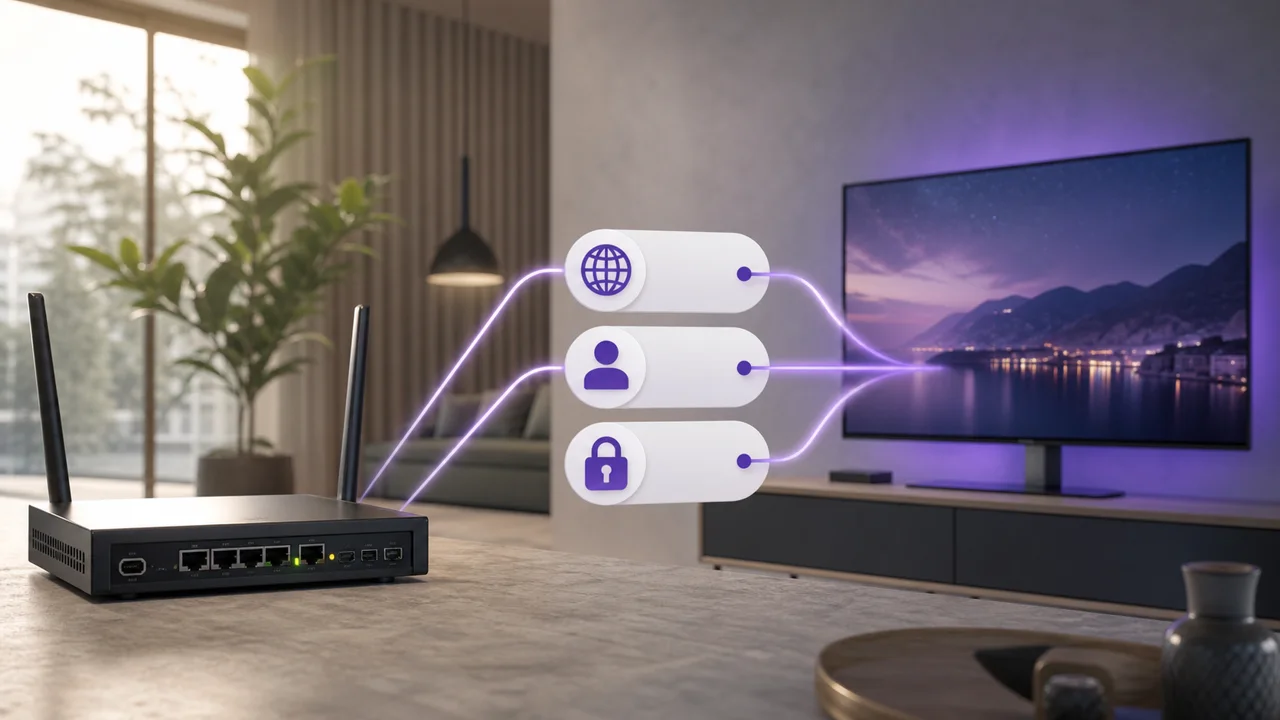
Add your playlist. This is where your channels come from. For most services the Xtream connection is the method to pick: you enter a Username, a Password and a Host, which is the server address. If you would rather use an M3U link, paste the full URL instead. These details come from whoever issues your playlist.
Name the playlist, complete the captcha and save. Give the playlist any name you like so you can recognise it later. Complete the captcha to prove you are human, then save. The portal now holds that playlist against your Device ID.
Go back to the TV and press Refresh. Open Duplex again and choose Refresh. The app pulls the playlist you just attached, and your channels, video on demand and EPG appear. If nothing shows, Refresh once more; the app only updates when you ask it to.
Notice that at no point did you type a channel list into the TV. Every field you filled in sits on the website, and Refresh is simply the app fetching it.
🔀 Xtream connection or M3U link: which should you add?
Duplex IPTV takes both, so the choice is really about which is tidier. The Xtream connection asks for three things: a Username, a Password and a Host, which is the server address your provider gives you. Enter those and Duplex talks to the service directly, which is why it is the recommended method for most people and why Duplex works well as an Xtream-native option on a smart TV.
An M3U link is the other route: one long URL that carries the same channels in a single file. It works fine, and some people prefer it for its simplicity, but for most setups the Xtream connection is the one worth choosing.
So where do the Username, Password and Host come from? Whoever issues your playlist. If you subscribe with us, those three values sit in your account area ready to paste, and we provide an M3U link for the same line if you would rather use that.
Either format carries the same content; the difference is in how Duplex loads and organises it. The optional EPG, the on-screen programme guide, follows whatever the playlist provides, so you do not set it up separately.
If you are still weighing the two formats, Xtream explained covers what a Username, Password and Host actually are, and M3U versus Xtream lines the two up side by side.
🇰🇷 How do you install Duplex IPTV on a Samsung TV (and the store catch)?
On a Samsung set, Duplex IPTV installs from the Tizen app store the same way any other app does. Open the store, search for Duplex or DuplexPlay, install it, then launch it. Samsung TVs run Tizen, Samsung's own operating system, and Duplex is built as a native Tizen app, so once it is on the set it sits alongside the streaming apps you already use.
There is a catch here, and it trips up a lot of people. The official Duplex listing has been region-limited, notably in the US store, so it may not appear in your country's Samsung store at all. You search, nothing comes up, and it looks like the app has vanished or been pulled. Nine times out of ten that regional restriction is the reason, not a fault on your TV or with your account.
⚠️ Can't find it on Samsung? The listing is region-limited, not broken. If Duplex is missing from your Samsung store, that restriction is almost always why, and the fix is an alternative player or an external device rather than a sideload.
If Duplex will not show up on your Samsung, do not go hunting for a sideload trick. We are not going to hand you a workaround we have not verified, and plenty of the ones circulating are out of date anyway. The honest fix is either a native player the site already covers or a small external device, both of which we go through further down.
For the wider picture of running IPTV on a Samsung without a separate box, read our guide to IPTV on a Samsung TV without a box. For another Tizen-native player on the same set, see the Smarters on Samsung guide.
🇱🇬 How do you install Duplex IPTV on an LG TV?
LG owners get the easier ride. On webOS, LG's smart-TV system, Duplex IPTV sits in the LG Content Store as a normal listing, without the regional restriction that affects Samsung. Open the LG Content Store, search for Duplex or DuplexPlay, install it, and you are ready to activate.
From there the process is identical to Samsung, because the activation happens on the website rather than the TV. Open Duplex, read the Device ID and the Device Key it shows you, then enter both on edit.duplexplay.com from your phone or computer. Add your Xtream or M3U playlist there, save it, and press Refresh back on the TV. Your channels, VOD and EPG load in.
So if you have a choice of sets and you specifically want Duplex, LG is the smoother platform. There is no store lottery to gamble on and no country-by-country availability to guess at. The player behaves the same once it is running; the only real difference is that LG almost always lets you find and install it in the first place.
💷 Is Duplex IPTV free?
There is no reliable fixed price to quote for Duplex IPTV, and that is an honest answer rather than a dodge. The player has historically been free or low-cost. Whether a build asks for an activation or unlock fee depends on the version and the region, and sources disagree on both whether a fee exists and how much it is.
That uncertainty is exactly why you should not take a number from a random blog or a reseller page. The terms have shifted between builds over time, so a figure that was true two years ago may not hold now. The only place that reflects the current cost is the developer's own site.
⚠️ If a build asks you to pay, confirm the current terms on the official duplexplay.com and pay only there. A third-party page quoting a price and taking your money is not the developer, and it is the same trap as the fake activation sites covered further down.
In practice, verify any charge at the source before you hand over anything. Install the app, open the activation tab, and if it points you to a fee, follow that to the official site and read the terms there. Do not pay a middleman, and do not assume a price you saw quoted elsewhere still applies.
🛡️ How do you avoid fake Duplex activation sites?
Because Duplex IPTV is activated on a web page rather than inside the app, copycat "Duplex activation" pages have appeared. They copy the look of the real portal and ask for the same things: your Device ID, your Device Key, sometimes a payment. Only one address is genuine. The official portal is edit.duplexplay.com, part of duplexplay.com. Anything else is not it.
The rule is short. Type the address yourself instead of following a link from a search result or a message. Check the domain before you enter anything. If a page asks for your Device ID, your Device Key or your card details and it is not edit.duplexplay.com, close it. Re-typing the correct address costs you a few seconds. Handing your Device ID and Device Key to the wrong page can cost you a lot more.
This is a product-safety point, not a technical one. Your Device ID and Device Key link a specific TV to a playlist, so they are worth guarding. Add your playlist and pay any fee only on the official site. If you want to know how we check what we publish, our methodology page sets it out.
🛡️ The one and only portal is edit.duplexplay.com. If the address bar shows anything else, it is not the real Duplex site.
🔁 Can't find Duplex IPTV in your store? The fallback options
When Duplex simply is not in your TV's store, which on Samsung is usually that regional limit, you have two honest routes, and neither of them is a dodgy sideload.
The first is another native player the site already covers. Smart IPTV runs on both Samsung and LG and does the same core job, filling an empty player with your own playlist. It leans M3U-first rather than Xtream-first, so the setup differs a little, but it stays on the TV with no extra hardware to buy or wire in.
The second is an external Android device plugged into the TV. A Fire TV Stick or a small Android box gives you a full app store and runs players such as XCIPTV or OTT Navigator with no region games at all.
The trade-off is plain: it is another gadget, another remote, and it takes up a spare HDMI input. In exchange you sidestep the smart-TV store limits completely, and the app is often snappier than the TV's own chip can manage.
Not sure which player to settle on across all of this? Our guide to choosing an IPTV app lines the options up side by side so you can match one to your TV and your playlist.
🍎 Can you use Duplex IPTV on an iPhone or Apple TV?
Not with the same app. Duplex IPTV is built for Samsung (Tizen) and LG (webOS) smart TVs, and that is the whole of its remit. There is no matching iPhone, iPad or Apple TV version to look for, so searching the App Store for it will lead nowhere.
If you are on Apple hardware and want a comparable player that takes an Xtream connection or an M3U link, the sensible move is a different app made for that platform. Our GSE Smart IPTV guide walks through one that runs on iPhone, iPad and Apple TV and follows the same idea: an empty player you point at your own playlist.
The activation steps differ, but the principle is identical: your content sits on your account and the app just plays it.
🧩 Why is Duplex IPTV not working?
Most Duplex problems trace back to one of four things, and none of them mean the app is broken. Work through them in order.
The playlist does not appear after you added it. The usual reason is that you never pressed Refresh on the TV, so the app is still showing its old state. Open Duplex and choose Refresh.
If it is still empty, check that the Device ID and Device Key on edit.duplexplay.com match the two values the app shows right now, because a single wrong character breaks the link. A wrong or expired Xtream Host, Username or Password will also connect to nothing. Our guides on the Xtream authentication error and no stream at all walk through those two cases.
You cannot find the app in the Samsung store. That is the regional restriction covered above, not a fault on your TV.
The guide is blank. A missing EPG means the playlist carries no guide data, or the times are shifted by a timezone offset. The EPG guide explains both.
Channels keep buffering. Smart-TV apps have limited processing power, so a wired Ethernet cable or a 5GHz Wi-Fi connection helps, and restarting the app clears a stalled stream. See fixing buffering for the full checklist.
| Symptom | Likely cause | Fix |
|---|---|---|
| 📋 Playlist empty after adding it | Refresh not pressed; Device ID/Key mismatch; wrong or expired Xtream details | Press Refresh, recheck the two values and the Host, Username and Password |
| 🔍 App missing from the Samsung store | Regional restriction on the Tizen listing | Use a native alternative or an external Android device |
| 📅 Guide (EPG) is blank | No EPG source in the playlist, or a timezone offset | Add or fix the EPG source, set the correct timezone |
| ⏳ Channels keep buffering | Weak network or an overloaded app | Wired Ethernet or 5GHz Wi-Fi, then restart the app |
Frequently asked questions
What is Duplex IPTV?
Duplex IPTV, also called DuplexPlay, is a native player app for Samsung (Tizen) and LG (webOS) smart TVs. It ships with no channels of its own; you supply the M3U or Xtream playlist, so it is a player rather than a subscription or content service.
Is Duplex IPTV free?
Duplex IPTV has been distributed free or at low cost, but sources disagree on whether a given build charges an activation or unlock fee. There is no reliable fixed price to quote, so confirm the current terms on the official duplexplay.com and pay only there.
How do I activate Duplex IPTV?
Open the app on your TV and read the Device ID and Device Key it shows. Enter both on the official portal edit.duplexplay.com, add your playlist, then press Refresh on the TV so the channels load.
What are the Device ID and Device Key?
They are two values the app displays in its activation tab that link your specific TV to the portal. You type them into edit.duplexplay.com, not the other way round, and they are what a fake site tries to collect.
Where do I add my playlist in Duplex IPTV?
You add it on the website edit.duplexplay.com after entering your Device ID and Device Key, not inside the app itself. The TV then loads that playlist when you press Refresh.
How do I set up an Xtream connection?
In the portal, choose the Xtream method and enter the Username, Password and Host (the server URL) your service gave you. It is the recommended option for most services, and a plain M3U link is the simpler alternative.
Why can't I find Duplex IPTV in the Samsung store?
The official Tizen listing has been region-limited, notably in the US store, so it may be missing from your country's Samsung store. That regional restriction is the usual reason, not a fault on your TV.
How do I install it on an LG TV?
On LG, Duplex IPTV is in the LG Content Store under webOS and installs normally, without the Samsung region restriction. After installing, run the same activation: Device ID and Device Key on edit.duplexplay.com, add the playlist, then Refresh.
Why is Duplex not working after I added my playlist?
The most common reason is that you did not press Refresh on the TV. If that is not it, the Device ID or Device Key on the portal does not match the TV, or the Xtream Host, Username or Password is wrong or expired; recheck those and Refresh.
What are the alternatives to Duplex IPTV?
If Duplex is missing from your store, a native player the site covers, such as Smart IPTV on Samsung or LG, is one route. An external Android device like a Fire TV Stick running another player is the other, at the cost of an extra device, remote and HDMI input.