Troubleshooting
Sound/image lag in IPTV: how to correct it step by step
IPTV audio out of sync? Fix sound delay in 5 steps: switch audio track, adjust the playback buffer, test without a soundbar and check 4K hardware decoding.
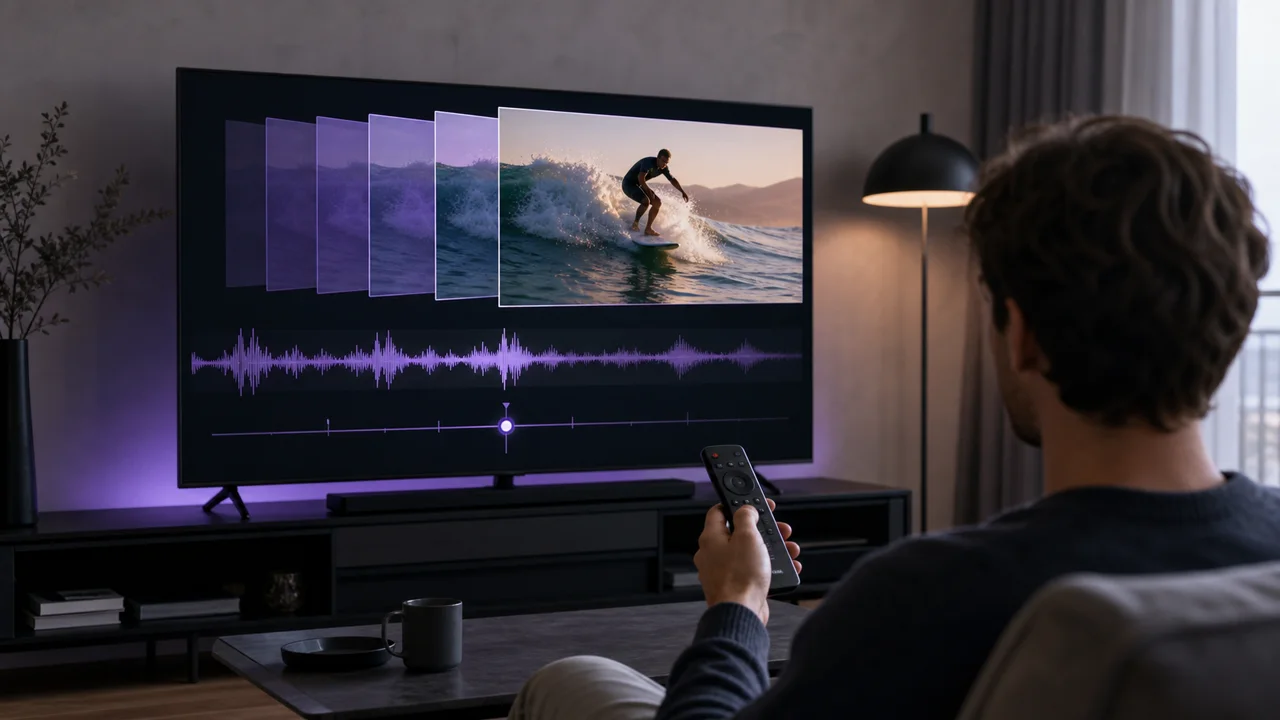
An audio/video lag, the sound running ahead of or behind the image, has different causes than a speed or Wi-Fi problem. The problem most often sits at the decoding level: the selected audio track, the application playback buffer, or external audio equipment. Follow these steps in order to identify it.
Is the lag on one channel or the whole catalog?
Change the channel, then test on-demand content if your access offers it. If the lag affects only one channel, the cause probably comes from the encoding of that specific channel. If it affects the entire catalog in the same way, continue with the diagnosis below, which is more likely to resolve the problem permanently.
Step 1: Does changing the audio track fix the lag?
- Open the audio menu or channel properties in your application.
- If multiple audio tracks are available for the same channel, select another one.
- Return to playback and check if the lag has changed or disappeared.
Some channels broadcast several audio tracks (different languages or encodings) which may not be identically synchronized with the image. An IPTV player generally displays this option from a dedicated menu during playback.
Step 2: How do you adjust or clear the playback buffer?
- Look for a buffer setting in the app's playback settings.
- Reduce its duration slightly if it is set to a long value, or close the application completely to clear the current buffer.
- Reopen the app and relaunch the channel.
A playback buffer that is too long can accentuate an existing lag by pushing the image display further away from the already processed sound. The exact name of this setting varies depending on the application used.
Step 3: Can a soundbar or amplifier cause the lag?
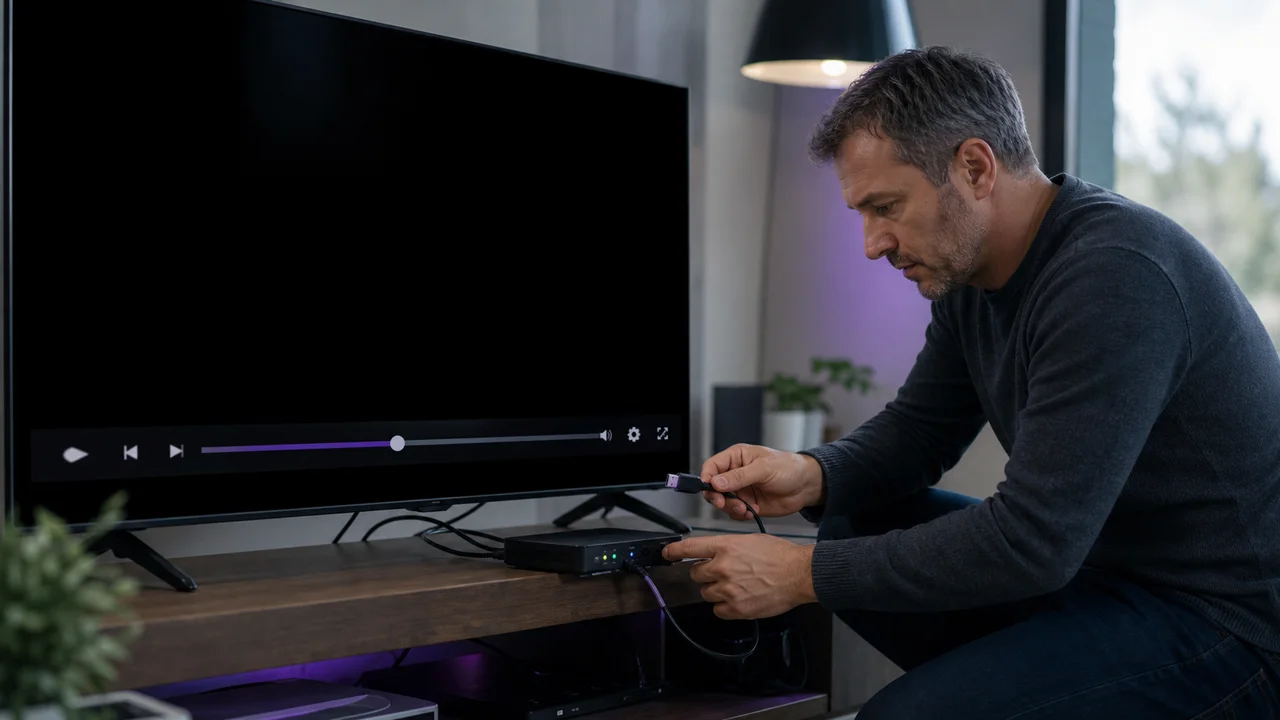
- Temporarily unplug the soundbar or amplifier connected via HDMI ARC or eARC.
- Use the TV's built-in speaker for this test.
- Compare the result: if the lag disappears, the external audio system is at fault.
An external audio system adds a signal processing step that can introduce a slight delay, documented in the general operation of the HDMI connection. If the delay is confirmed on the audio system side, look for a lip sync setting in the settings of that equipment rather than in the IPTV application.
Step 4: Can 4K hardware decoding cause the lag?
A 4K stream requires more hardware decoding than an HD stream, especially with a recent codec like HEVC (H.265). On an older or limited device, this additional load can accentuate a slight lag that becomes noticeable. HEVC support has become widely available on recent devices, but remains more limited on certain older models, as documented in the HEVC reference page. If the application offers a definition choice, test the channel in HD to confirm if the lag decreases.
Step 5: Can another app fix the lag?
If the lag persists after these checks, test the same stream on a second player installed on the same device. A lag that disappears with another application confirms that the cause is specific to the first application's decoding rather than the stream or device.
Troubleshooting
- Lag present only in 4K: test in HD to confirm a hardware decoding limit.
- Lag that varies during playback: restart the application rather than continuing to watch; a misadjusted buffer rarely corrects itself.
- Lag only with an external audio system: adjust lip sync from that equipment's settings.
- Still stuck after these five steps: the problem probably comes from the stream itself; contact support with the name of the channel and the time observed.
In summary
An audio/video lag in IPTV is rarely fixed by tweaking the network: first change the audio track, adjust the playback buffer, test without an external audio system, then check the hardware decoding on a 4K stream. If playback lags rather than just being offset, our guide to fixing IPTV buffering covers this separate case.
Frequently asked questions
Does the sound/image lag always come from the network?
No. Unlike buffering, audio/video lag often appears even on a stable connection: the most common cause is the decoding (audio track, playback buffer, hardware decoding) rather than the available bandwidth.
Why does the lag change from channel to channel?
Each channel may use a slightly different encoding or audio track. If the lag is present on a specific channel but not on others, the cause is probably the stream of that channel rather than your device.
Can an external audio system (soundbar, amp) cause this lag?
Yes. An external audio system connected via HDMI ARC or eARC adds a processing step which may introduce a slight delay. If the lag disappears with the TV speaker alone, the external audio system is the culprit.
Should you change applications if the lag persists?
Test another player on the same device first before concluding. If the lag disappears with another application on the same stream, the cause is application-specific decoding rather than the stream or device.
Can the lag come from the definition (HD vs 4K)?
Indirectly, yes: a 4K stream requires more hardware decoding than an HD stream, which can accentuate a slight lag on an already limited device. Reducing the definition, if the application allows it, helps confirm this hypothesis.