Connections
Optimize your Wi-Fi for IPTV: band, position, channel, mesh
Optimize Wi-Fi for IPTV: pick 2.4 or 5 GHz, position the router, change a congested channel and add mesh only for dead zones. Ethernet wins if it persists.
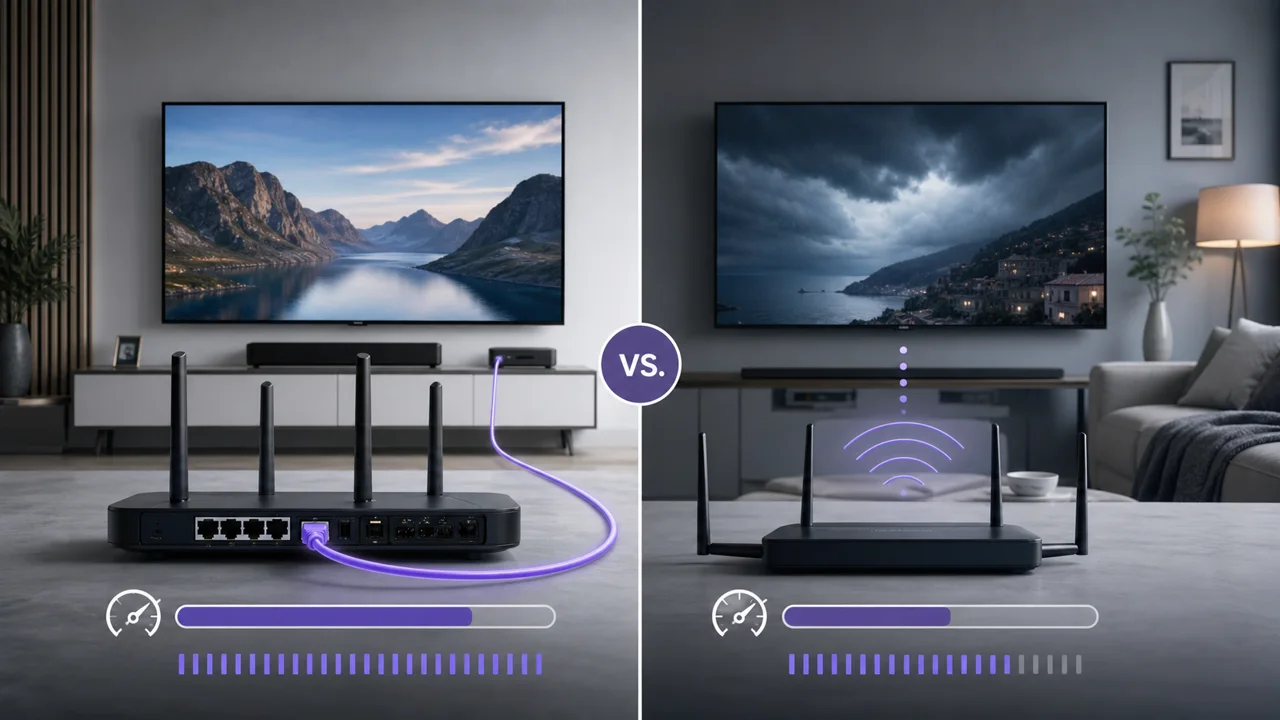
Wi-Fi is based on radio waves shared with many other devices and neighboring networks: its quality therefore varies depending on the band used, the distance, obstacles and local congestion, unlike an Ethernet cable whose speed remains stable. This guide details the settings that actually make a difference for IPTV, in the order to test them.
What do you need?
- Access to the administration interface of your router (often via an address like 192.168.1.1, variable depending on the provider).
- The IPTV device connected via Wi-Fi (box, Smart TV, streaming stick).
- A speed test to compare the results before and after each change.
1. Should you use 2.4 GHz or 5 GHz for IPTV?
Use 5 GHz when the device is close to the router and 2.4 GHz when it is far or behind several walls. The 5 GHz band offers more throughput at short distances thanks to a higher frequency, while the 2.4 GHz band carries further but suffers more congestion, a frequency and range trade-off documented by the ANFR, the agency that regulates radio frequencies in France.
- If the IPTV device is in the same room or in close proximity to the router, connect it to the 5 GHz band (often named with a "5G" suffix in the list of available networks).
- If the device is far away or separated by multiple walls, test the more distance-tolerant 2.4 GHz band first.
- Compare a speed test on each band before making a final choice.
2. Where should you place the router?
The position of the router influences the signal quality as much as its software settings:
- Place the router high and clear, rather than on the floor or in a closed cabinet.
- Avoid metal obstacles or water (aquariums, pipes) between the router and the IPTV device, which strongly attenuate the signal.
- Centralize the router in relation to the rooms used, rather than leaving it near the internet entry point if that is off-center.
Simply moving it a few meters can be enough to stabilize an IPTV box that regularly drops out.
3. Can changing the Wi-Fi channel help?
Like a road shared by several vehicles, a Wi-Fi channel crowded with many neighboring networks slows down all the devices that use it:
- Open the router's administration interface and locate the channel setting (often in automatic mode by default).
- In 2.4 GHz, favor channels 1, 6 or 11, which do not overlap unlike the intermediate channels.
- At 5 GHz, congestion is generally lower, but a manual change remains possible if the automatic mode chooses poorly.
- Retest the speed after each change to confirm an improvement.
4. Do you need a mesh system for IPTV?
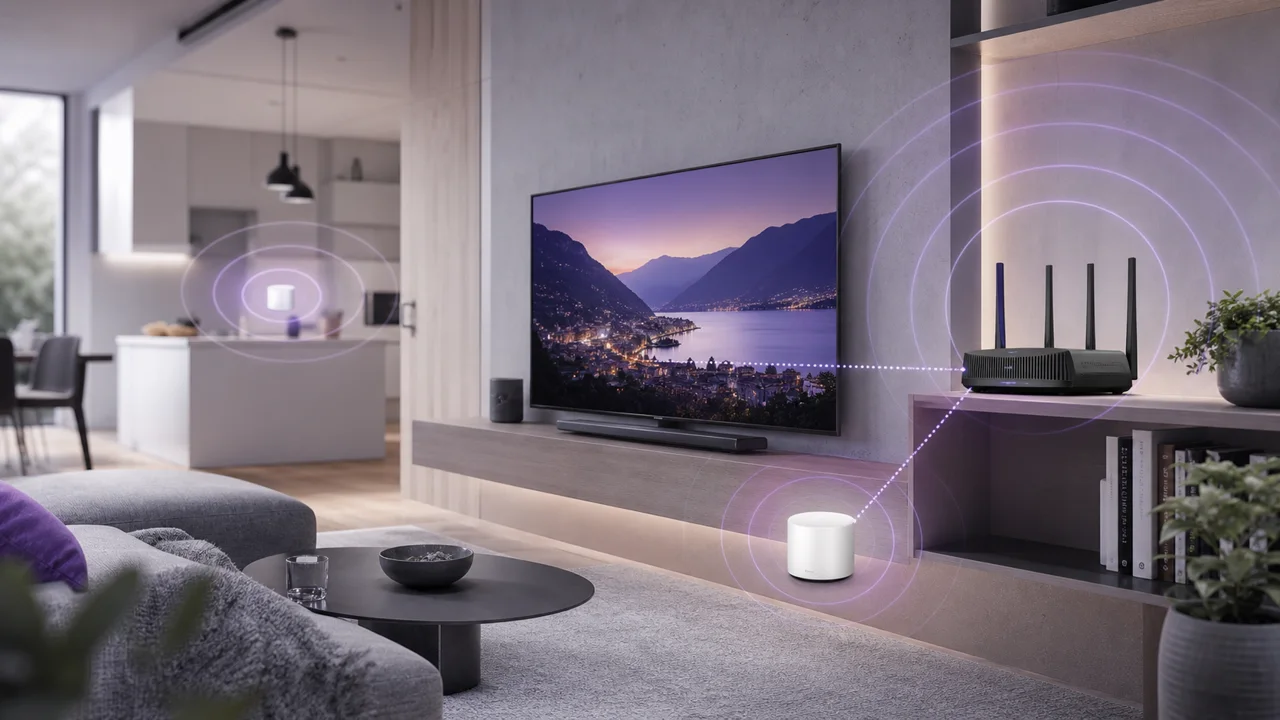
A wireless mesh network distributes Wi-Fi coverage through several connected access points instead of relying on one central router. It becomes useful when:
- A room remains systematically poorly covered despite repositioning the router.
- The home is large, spread over several floors, or has thick walls.
- Several IPTV screens distributed throughout the home experience different slowdowns depending on their location.
However, a mesh does not provide anything additional if the router alone already covers the IPTV device correctly: it is not a universal improvement, only a response to a specific coverage problem.
5. Why test the speed after each change?
- Test the speed at the same time of day after each adjustment, to compare under similar conditions.
- Note whether changing band, position, or channel provides a measurable improvement.
- If no Wi-Fi setting is enough, consider an Ethernet cable on the affected device. See our comparison Ethernet or Wi-Fi for IPTV.
Troubleshooting
- Throughput does not improve on any band: the problem may be with the internet connection itself rather than Wi-Fi. See our guide on fixing buffering.
- The slowdown appears especially in the evening: general network load at peak hours can add to radio congestion from the neighborhood, a distinct cause detailed in our article on IPTV slow in the evening.
- Only one device in the household is affected: move this device closer to the router or test it on another band before changing the settings for the entire network.
- Nothing changes despite all these settings: switch to Ethernet on the device concerned if the hardware allows it; it is the most reliable solution in a difficult Wi-Fi environment.
When traveling, the network constraints are different: our articles on IPTV in a motorhome or caravan and IPTV abroad detail the cases where domestic Wi-Fi does not apply.
In summary
Optimizing Wi-Fi for IPTV involves choosing the band according to distance, good positioning of the router, a less congested channel and, only if necessary, a mesh system for poorly covered areas. Test the speed after each change to confirm a real improvement. If Wi-Fi remains unstable despite these settings, Ethernet eliminates most of these variables. See our comparison Ethernet or Wi-Fi.
Frequently asked questions
Should you always favor the 5 GHz band for IPTV?
Not systematically. The 5 GHz band generally offers more throughput at short distances, but has shorter range and penetrates walls less well. If the device is far from the router or separated by several walls, the 2.4 GHz band may remain more stable despite a lower theoretical throughput.
Does changing Wi-Fi channel really improve IPTV?
This can help if your current channel is shared with many neighboring networks, especially in buildings. The effect is especially clear at 2.4 GHz, where the number of non-overlapping channels is limited; at 5 GHz, congestion is generally lower.
Is a mesh system necessary for IPTV?
Only if your home has areas poorly covered by a single router. A mesh spreads Wi-Fi coverage across multiple points, which can stabilize the connection in remote rooms, but does nothing if the router alone already covers the IPTV device well.
Does Wi-Fi 6 change anything for IPTV?
Wi-Fi 6 (and subsequent generations) especially improves network efficiency when multiple devices are active at the same time, more than the maximum throughput of an isolated stream. It can help in a home with many connected devices, but is not essential for simple IPTV use.
Why does my Wi-Fi slow down especially in the evening?
In the evening, more devices in the neighborhood and household use Wi-Fi and the internet at the same time, which can increase radio congestion on top of the overall network load. Our article on slow IPTV in the evening details this cause separate from the Wi-Fi setting itself.