Connections
Does changing DNS really help IPTV? The honest answer
Best DNS for IPTV? DNS resolves the server address but carries no video, so it won't fix throughput or buffering. See the rare cases where it truly helps.
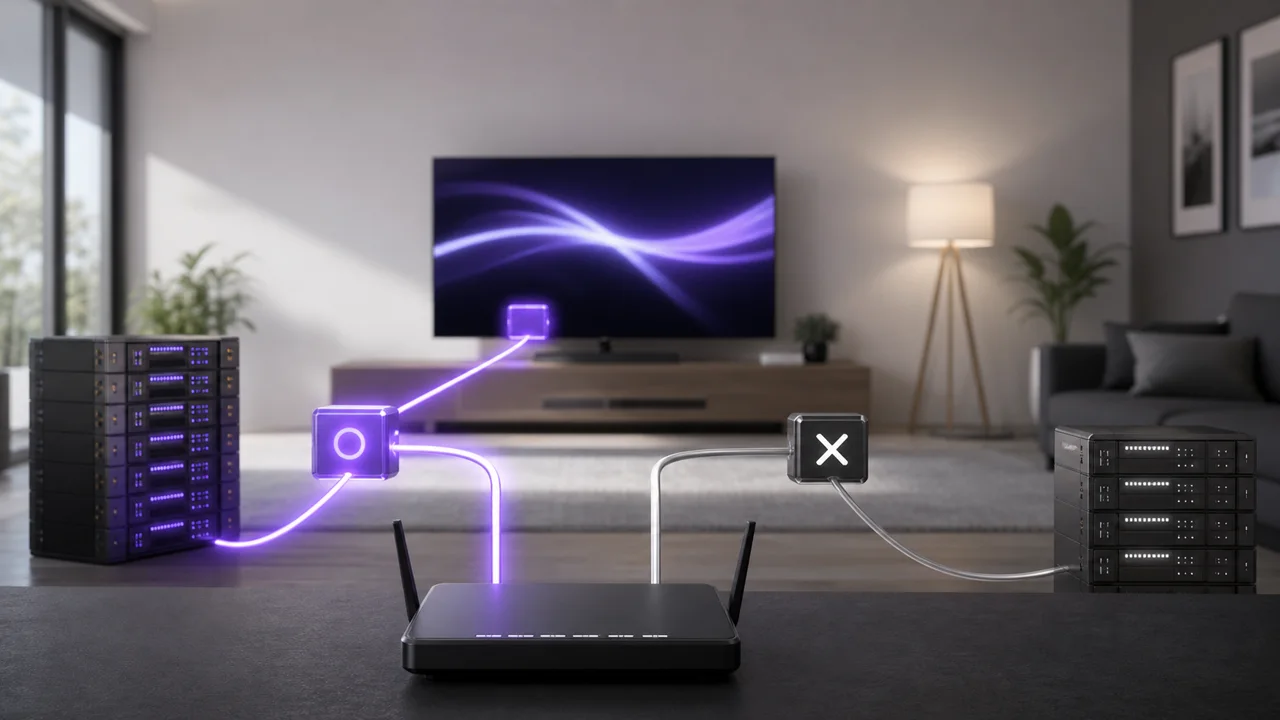
DNS is often cited in IPTV troubleshooting guides, sometimes as a universal solution. The reality is more limited: the DNS (Domain Name System) translates a server name into a usable network address, a bit like a telephone directory translates a name into a number. It occurs at a specific stage of the connection, not for the entire duration of playback.
What does DNS actually do?
DNS has one job: it turns a server name into a network address, a quick lookup done before any video is transferred. When an IPTV app connects to a server, it first obtains that address from the name. Once the address is known, DNS plays no further part, and the video passes directly between the app and the server without going through DNS again.
What does DNS not change?
Faster DNS does not increase the throughput available on your line, improve Wi-Fi coverage, or reduce the load on an IPTV server at peak times. These three factors, responsible for the vast majority of cases of buffering, are independent of DNS:
- The available speed at the time of playback, covered in our guide on the speed needed for 4K IPTV.
- The quality of Wi-Fi, in particular on the 2.4 GHz band which is more sensitive to congestion, covered in our guide to optimize Wi-Fi.
- Network congestion, which can affect throughput and cause packet loss beyond a certain load, as documented in Wikipedia on Network Congestion, a phenomenon located at the service provider or server, beyond the reach of a simple DNS change.
When does changing DNS actually help?
DNS deserves to be tested in specific cases, not systematically:
- The application takes an abnormally long time to open, before even displaying a channel.
- A server connection error appears immediately, unrelated to a credentials problem that has already been ruled out.
- The DNS provided by your ISP responds unusually slowly, which can happen occasionally without affecting the rest of your connection.
In these cases, test an alternative public DNS in the device's network settings, then compare the app opening speed before and after. If nothing changes, restore the original DNS and look elsewhere for the cause.
When should you skip DNS entirely?
If playback starts normally and hangs after several minutes, or if the problem affects several channels irregularly, DNS is rarely the cause. Start with the Cloudflare Speed Test, then the Wi-Fi, before coming back to DNS as a last resort. The diagnostic order detailed in our buffering troubleshooting guide deliberately places DNS at the end of the list.
Summary table
| Symptom | Is DNS to blame? |
|---|---|
| Application takes a long time to open | Possible: worth testing |
| Server connection error upon launch | Possible: worth testing |
| Video that freezes after several minutes of playback | Rare: see speed or Wi-Fi |
| Slowdown that affects several channels irregularly | Rare: see throughput, congestion or server |
| Box that no longer responds at all | Unlikely: see reboot and cache |
Troubleshooting
- Changing DNS does not improve anything: restore the original DNS and check the speed and Wi-Fi as a priority.
- The application still does not launch after a DNS change: the problem probably comes from the credentials or the subscription, not from the network. See our diagnosis of the box that no longer works.
- Playback is smooth at startup but then freezes: focus on speed and Wi-Fi rather than DNS.
In summary
DNS translates the address of a server, it does not transport any video data: changing it can help in the event of a slow connection when starting the application, but it does not correct the speed, the Wi-Fi, or buffering that occurs during playback. Test it as a last resort, after checking the speed and Wi-Fi coverage.
Frequently asked questions
Does changing DNS increase my internet speed?
No. DNS does not carry any video data and has no effect on available throughput. It only comes into play when the application looks up the server address, even before the video transfer begins.
Why do some IPTV guides still recommend changing DNS?
Because DNS can explain certain specific blockages: an ISP-provided DNS that responds poorly, slow resolution when starting the application, or certain domains being blocked by the default DNS. This remains a special case, not a general solution to buffering.
Which public DNS should you choose for testing?
Any widely used public DNS service is suitable for a comparison test (yours remains the reference point). The goal is to compare app opening speed before and after the change, not to follow a universal recommendation.
Can DNS explain a freeze during playback, after several minutes?
It's rare. Once the connection is established with the server, DNS is no longer involved in the video transfer itself. A hang after several minutes of stable playback almost always comes from throughput, Wi-Fi, or server load, not DNS.
How do I know if my problem is really with DNS?
If the application takes an unusually long time to open or displays a server connection error before even loading a channel, DNS is a reasonable suspect. If the app opens normally and the freeze occurs during playback, look at speed or Wi-Fi instead.