Troubleshooting
IPTV subtitles not showing: how to activate them
IPTV subtitles not showing? Enable the right track in the playback menu, confirm the stream carries one, and check app support for SRT and embedded formats.
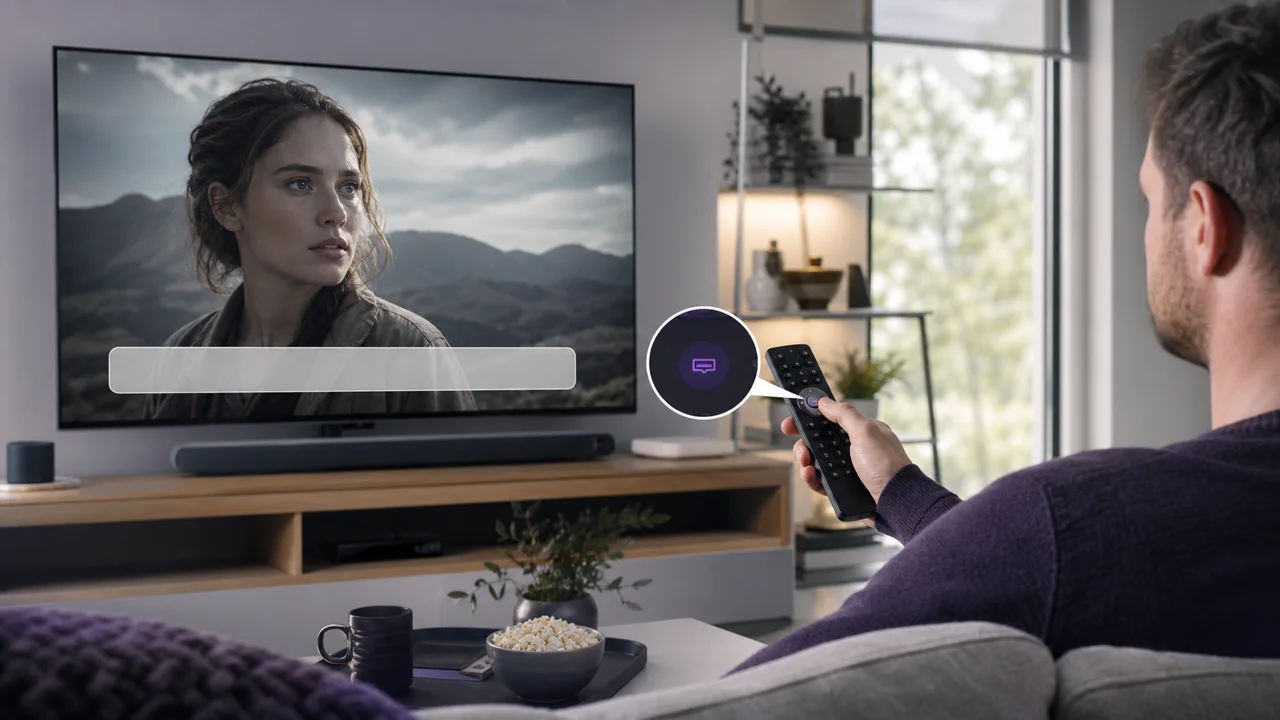
Subtitles represent audio content in the form of text displayed on the screen, in the form of a transcription or translation. In IPTV, they can be integrated directly into a channel's stream or provided separately for video on demand. This guide details how to enable them and why they can sometimes be missing.
Live channel or VOD: which are you watching?
The behavior differs depending on what you're looking at:
- Live channel → subtitles, if they exist, are integrated into the stream and are activated from the current playback menu.
- Content on demand (VOD) → subtitles can be embedded in the file or provided as a separate external file, depending on the application and source.
Step 1: How do you open the subtitle menu during playback?
- Start playing the channel or content in question.
- Look for an icon or option named "Subtitles" or a text-bubble icon in the playback controls, often accessible by pressing the center button on the remote or by tapping on the screen.
- If a list of languages or tracks appears, select the desired one.
On applications like TiviMate, this menu is generally accessible directly during playback, in the same place as the choice of audio track.
Step 2: Does the stream actually carry subtitles?
If the menu remains empty or does not appear at all:
- Test another channel known to offer subtitles, if you know of one in your catalog.
- If the menu also remains empty on this channel, the problem is probably related to the application (step 3).
- If another channel displays its subtitle menu normally, the original channel's feed simply has no tracks, which is not a malfunction that needs fixing.
Step 3: Does your app support the subtitle format?
Some applications handle subtitle formats differently. The most common external format is SubRip (.srt), a simple text file associating blocks of text with precise timestamps, as described in its reference documentation. Other formats exist, image or text, as documented in official VLC support for reference on the diversity of existing formats.
- Check in your application settings if there is a section dedicated to subtitles (automatic activation, preferred language by default).
- If a preferred language setting is available, set it to avoid having to activate the track manually on every channel.
- If the application offers multiple internal players or decoding engines, test another one if the option exists: subtitle support may vary between them.
Step 4: How do you restart after a settings change?
- Close the app completely, not just the playback screen.
- Reopen it and relaunch the channel or content in question.
- Check if the previously selected subtitle track is retained correctly.
Summary table
| Symptom | Probable cause | To do |
|---|---|---|
| Subtitle menu missing on all channels | Application without support, or setting to enable | Check app settings |
| Menu present but empty on a specific channel | Stream without subtitle track | Test another channel |
| Subtitles present but shifted | External file synchronization | Check if the offset also affects the sound |
| Incorrect default language on every playback | No preferred language setting | Set a default language if the option exists |
Troubleshooting
- The menu exists but no language appears when selecting it: the stream offers a declared but empty subtitle track; report the channel to support with its exact name.
- Subtitles appear then disappear during playback: restart the application rather than continuing, an unstable display rarely corrects itself.
- The lag also concerns the sound, not just the subtitles: your problem is probably a more general audio/video lag, covered in our guide dedicated to sound/image lag in IPTV.
- Still blocked: contact support with the name of the channel, the application used and a precise description of what is displayed in the subtitles menu.
In summary
Missing IPTV subtitles can be fixed by first checking the playback menu while streaming, then testing whether another channel normally offers its subtitles, and finally checking your application's language and support settings. Our complete TiviMate guide details all the playback menus, including subtitles, for this application.
Frequently asked questions
Why does one channel offer subtitles and another not?
The availability of subtitles depends on the stream itself, not your application: only channels whose stream includes a subtitle track can display them. Some channels simply don't offer them.
What is the difference between embedded subtitles and an external file?
Embedded subtitles are part of the video stream itself and are activated from the menu of the currently playing channel. An external file (often in .srt format) is a separate text file, used mainly for video on demand rather than live.
Why does the subtitle menu remain empty in my app?
If the menu appears but remains empty, the channel's stream probably does not contain any subtitle tracks. Test another channel known to offer them to see if the problem is general or specific to that channel.
Do all IPTV apps support subtitles the same?
No. Some automatically detect and display available tracks, others require manual activation from a dedicated menu, and a small number do not support certain subtitle formats. Consult your application documentation if in doubt.
Can subtitles be offset from the image?
Yes, especially with an external file poorly synced with the video. This is a separate problem from typical audio/video lag; if it's rather the sound that is shifted, our dedicated guide covers this case separately.
Do you need a specific application to have IPTV subtitles?
No, most mainstream IPTV applications support subtitles when the stream offers them. However, the quality of support (automatic activation, choice of language, display settings) varies from one application to another.