Connections
IPTV multiple screens: how many simultaneous connections to choose?
IPTV multiple screens: what counts is simultaneous connections, not installed devices. Pick 1, 2 or 3 streams based on screens active at once.
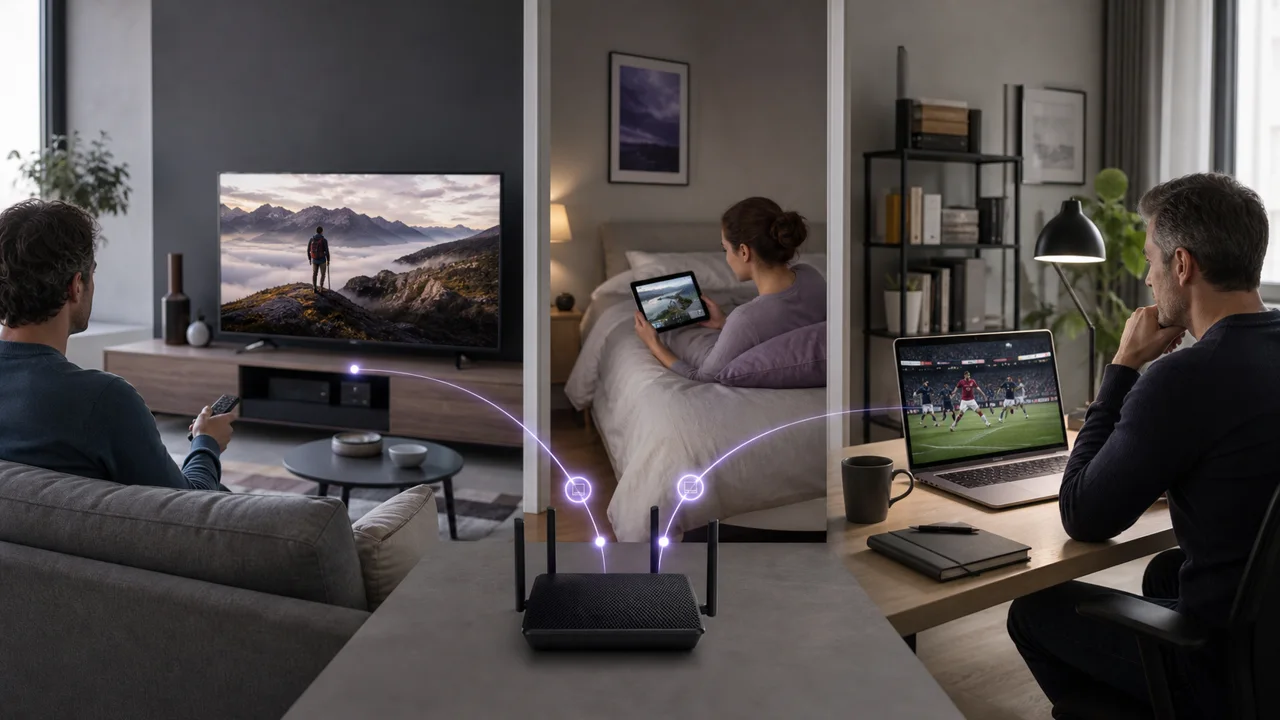
In a household, several people may want to watch different programs at the same time on multi-screen IPTV. The right number of connections does not depend on the total number of devices, but on the number of screens actually used at the same time. IPTV4KSubscriptions offers 1, 2 or 3 simultaneous connections.
What does “simultaneous connection” mean?
A simultaneous connection corresponds to an active stream on a given device, at a specific time. The limit does not necessarily correspond to the number of devices on which the information was recorded, but to the number of active playbacks at the same time. This is a principle found in most streaming services: Netflix, for example, explicitly limits the number of screens usable "at the same time" according to the chosen plan, regardless of the number of devices registered to the account.
Concretely: if your plan includes two simultaneous connections, you can watch a channel on your Smart TV and, at the same time, a film on your phone. If a third person in the household attempts to open a stream at the same time, the connection will be refused or one of the current playbacks will be cut off, depending on the server configuration.
How many connections should you choose: 1, 2 or 3?
Each duration offered on the rates page can be viewed with 1, 2 or 3 simultaneous connections. You first choose the number of active screens, then the duration of 1, 3, 6 or 12 months. The price is recalculated in the grid before your request.
No plan exceeds three simultaneous playbacks. If your household regularly uses four or more screens at the same time, the current offer is not suitable for this use.
What are the best practices for a multi-screen home?
If your household has several regular viewers, a few simple habits get the most out of your included connections:
- Distribute devices by room rather than by person. A Smart TV in the living room (see our LG Smart TV guide if this is your model) and a box in a bedroom (see our Android TV Box guide) already cover two simultaneous uses typical of a household.
- Avoid leaving an application open unnecessarily in the background on a device that no one is looking at: some applications maintain an active connection even when paused for a long time, which can consume a simultaneous connection without you realizing it.
- If you regularly reach your limit, choose 2 or 3 connections during your next request rather than sharing your identifiers outside the household.
- If one screen displays buffering while another is watching at the same time, the local network may lack throughput for several streams at once: our guide to streaming buffering explains how to measure and distribute the load between devices.
What not to do
Do not publish your login details or share them outside your home. Someone who has them can use an available connection and prevent one of your own screens from starting playback.
Do installed devices count toward the limit?
No. Only playbacks active at the same time count, not how many devices hold your credentials. You can prepare several devices in the home with a compatible application. See our IPTV application comparison to choose the right player per device. The limit concerns playbacks active at the same time: a two-connection plan allows two simultaneous streams, even if the identifiers are recorded on more screens.
How do you size your plan to your household?
A single person or a couple watching together can start with one connection. Two connections are suitable when the living room and a bedroom are often used in parallel. Three connections are useful when a third display is regularly operating at the same time.
The number of people in the household is not enough to decide: three people can watch together on one screen, while two people can use two separate screens. Count concurrent playbacks, not profiles or installed devices.
A good reflex is to observe your habits for a few days before choosing. Simply note the maximum number of active screens at the same time. If several screens share the same Wi-Fi network, keep in mind that a congested band can also limit fluidity: the ANFR notes that the 5 GHz band generally offers more speed at short distances, a useful point if several screens in the home are close to the router. You can also measure the connection shared by those screens with the Cloudflare Speed Test.
In summary
IPTV4KSubscriptions offers 1, 2 or 3 simultaneous connections for each duration. Choose based on the maximum number of screens actually active at the same time, not the number of devices installed, then consult the price list to compare the corresponding price.
Frequently asked questions
What is a simultaneous connection in IPTV?
It is an active stream on a given device, at a specific time. Watching IPTV on several screens at the same time therefore consumes several simultaneous connections, even if the identifiers are only registered on a single account.
How do I know how many connections I am currently using?
If a new device fails to connect while the others are working, this is generally a sign that your plan's number of simultaneous connections has been reached. Close a current playback on another device before trying again.
Can I upgrade to a higher plan during my subscription?
Yes, you can adjust your plan to increase your number of simultaneous connections if your household needs change. Consult our pricing page to compare the available plans.
Are simultaneous connections counted per device or per person?
Neither exactly: they are counted per active stream at a given moment, regardless of the number of people present in front of the same screen. A single connection is enough for several people to watch the same program together on the same device.
Why does my playback stop when another screen in the home starts IPTV?
This usually means that the number of simultaneous connections for your plan has already been reached. The server refuses the new connection or cuts one of the current playbacks, depending on its configuration. Close an unused application or choose a plan with more connections if this situation comes up often.