Configuration
IPTV on Orange or SFR box: what works (and what doesn’t work)
Install IPTV on an Orange or SFR box: why the operator decoder is locked, why the box works only as an internet access point, and the real network limits.
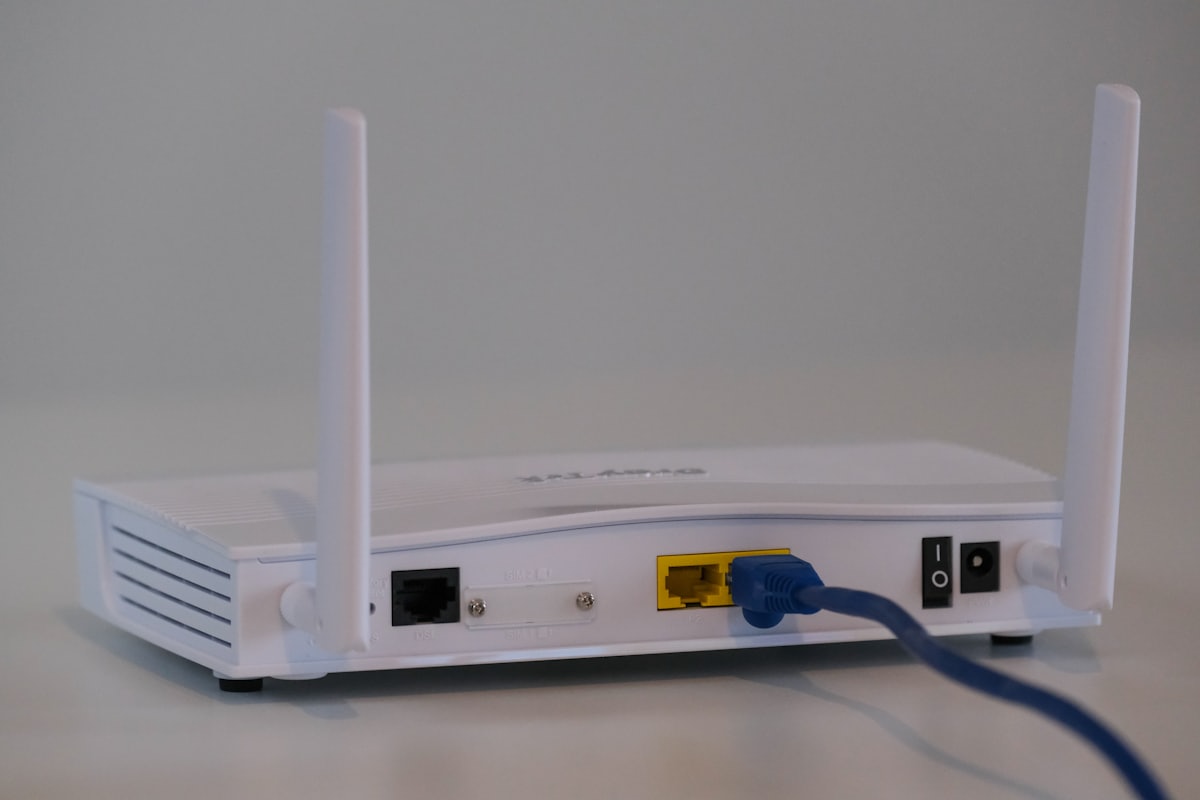
“How to install IPTV on an Orange box” amounts to confusing two very distinct roles: the box as an Internet access provider, and the operator decoder as a device dedicated to its own television service. This guide clearly explains what works, what doesn't, and what to actually check on the network side.
Can you install IPTV on the Orange or SFR decoder?
No: the decoder provided by a telecom operator is a closed device, designed and locked down for its own channel package, following the general principle of TV decoders described on Wikipedia. It does not have an open application store comparable to that of a Smart TV or an Android box: it is impossible, in almost all cases, to install a third-party IPTV application such as VLC, TiviMate or IPTV Smarters Pro.
Orange also offers, to expand the use of its own service without a physical decoder, software alternatives (mobile application, browser, Chromecast) reserved for its own subscribers, as detailed in its official support page. Even the operator itself separates the physical decoder from the software application.
Does the box's Internet connection work for IPTV?
Yes: the Orange or SFR box works perfectly for IPTV as an Internet access point. Any device connected to it, via Wi-Fi or Ethernet, can run an IPTV application normally, exactly as it would with any other service provider. Our guide how to install IPTV details the three connection methods (M3U URL, Xtream Codes credentials, dedicated application), valid regardless of the Internet operator used.
Why can't you install an IPTV app on the decoder itself?
Installing an IPTV application directly on the operator decoder fails in almost all cases because the device simply does not have the software capacity for it. The fix is to plug a separate device into a free HDMI port on the TV (a Smart TV, an Android box, a streaming stick or a computer) rather than trying to modify the operator decoder. See our article what is an IPTV box to choose the right option according to your television.
Table: what works / doesn't work
| Element | Works for IPTV? |
|---|---|
| Internet connection of the box (Wi-Fi/Ethernet) | Yes, without any special settings |
| Operator decoder (Livebox, SFR box) to support a third-party IPTV app | No, locked-down device in almost all cases |
| Smart TV connected to the same network | Yes, the application installs directly |
| Android box connected to the same network | Yes, no operator restrictions |
| Changing the DNS of the box | Generally unnecessary for IPTV |
| Opening outgoing ports | Generally unnecessary, HTTP/HTTPS ports already open |
DNS and ports: should you change anything?
For a standard IPTV service you do not need to change the DNS or open any ports. Two common misconceptions come up often:
- DNS: a standard IPTV service does not require changing the DNS servers provided by default by the box. A DNS change can sometimes improve general browsing slowness, but it is not a requirement for IPTV to work.
- Ports: IPTV relies on the same protocols as classic web browsing (HTTP/HTTPS), already open outbound by default on any Internet box. No port forwarding is necessary on the user side to watch an IPTV stream.
If your connection quality is in doubt, ARCEP's official Ma Connexion Internet tool lets you check the coverage and technology available at your address.
Which device should you connect to your Orange or SFR box?
In practice you have three options, depending on your equipment: a Smart TV already on the network, an Android box or stick on a non-smart TV, or a computer or mobile already connected.
- Smart TV already connected to the box: install an IPTV application directly from its application store, without additional hardware.
- Non-smart TV: add an Android box or streaming stick, plugged in via HDMI and connected to the box's Wi-Fi or Ethernet.
- Computer or mobile already on the network: an application like VLC or IPTV Smarters Pro works immediately, without additional network configuration.
In summary
The Orange or SFR decoder and the Internet box play two very different roles: the box provides network access, the operator decoder remains reserved for the provider's TV service. For IPTV, the box is sufficient as an access point: you simply need to connect a device capable of installing an application, without DNS settings or particular ports to modify.
Frequently asked questions
Can you install an IPTV application directly on the Orange or SFR decoder?
No, in the vast majority of cases. The operator-provided set-top box is a locked-down device, designed only for its own TV service, with no open app store where you could install a third-party IPTV player.
Do you need an additional device to use IPTV with an Orange or SFR box?
Yes, in general. You need a device capable of installing applications — Smart TV, Android box, computer or mobile — connected to the box's Internet network. The box itself only serves as an Internet access point, not as a host for the IPTV application.
Should you change the DNS of your Orange or SFR box for IPTV?
No, this is not necessary in most cases. A standard IPTV service works with the DNS servers provided by default by the box. Changing the DNS can sometimes help with general slow browsing, but it is not a required step for IPTV itself.
Should you open specific ports on your box for IPTV?
No. IPTV uses the same standard ports as classic web browsing (HTTP/HTTPS), already open outgoing by default on any Internet box. No port forwarding is needed on the user side.
Is the Wi-Fi of the Orange or SFR box enough for good-quality IPTV?
It depends on the quality of the signal and the desired resolution. For live streaming in Full HD or 4K, a wired Ethernet connection remains more stable than Wi-Fi shared by several devices in the home.
Why is my IPTV slow when my Orange/SFR connection is good?
The quality of your Internet subscription is only one factor among others: the bandwidth available at that precise moment, the load on the IPTV server and the quality of the local Wi-Fi also play a role. Our buffering troubleshooting guide details each possible cause in order.